AI Chat Pro · Connectors
Connect your own tools and context
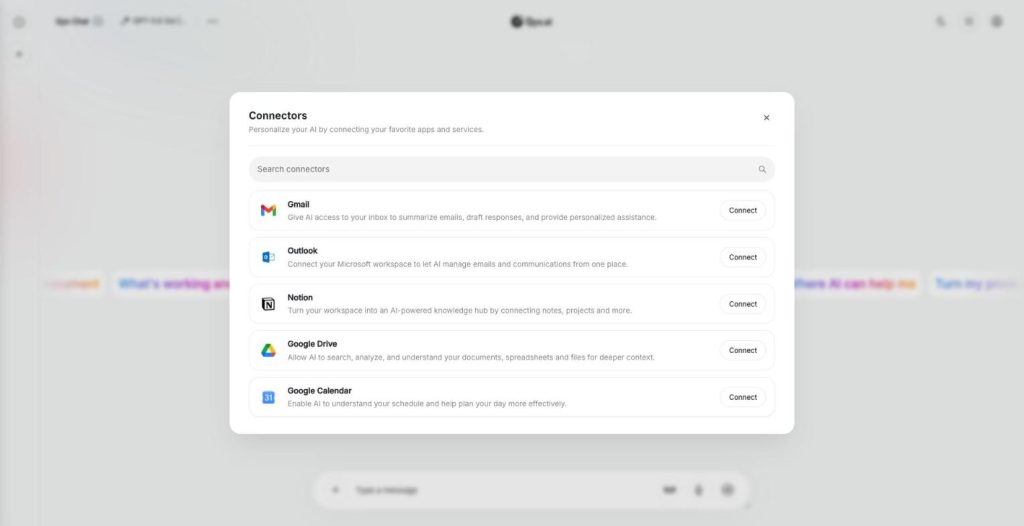
AI connectors link AI Chat Pro to Gmail, Outlook, Notion, Google Drive and Google Calendar. The AI then reads your real emails, notes, files and meetings and answers with your own context.
- Gmail and Outlook
- Notion
- Google Drive
- Google Calendar
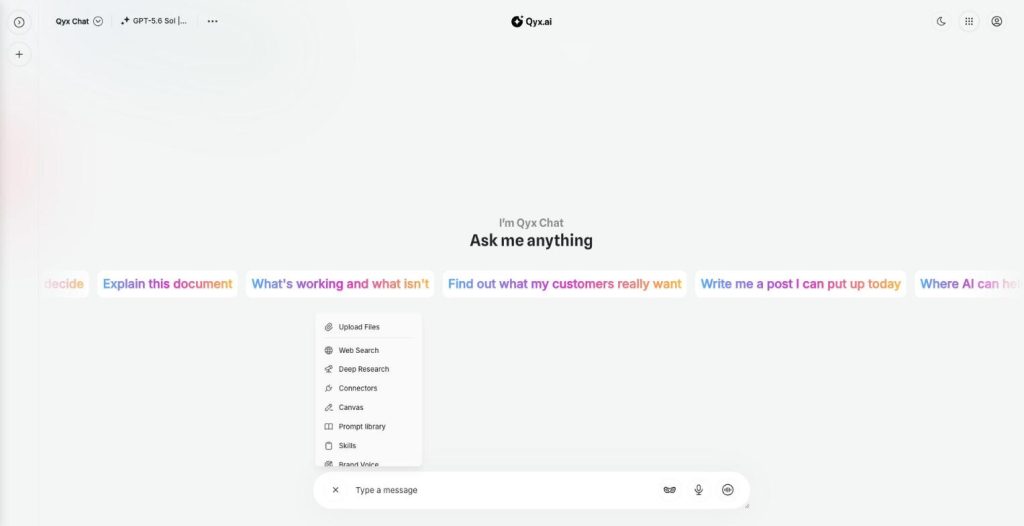
Open Connectors in the plus menu.
- You choose what to connect
- Works in your browser
- Cancel anytime
AI that knows nothing about you
A general AI can write an email, but it doesn't know what the client wrote last week or what is in your project notes.
I paste emails into the chat to get a reply.
My notes and files sit in other apps.
The AI doesn't know my schedule.
One chat with your context:
- Gmail
- Outlook
- Notion
- Google Drive
- Google Calendar
- Connector search
How It Works
A simple three-step process, start to finish.
-
Open Connectors
Click the plus button and choose Connectors.
-
Connect an app
Click Connect next to Gmail, Notion or another app and sign in.
-
Ask with context
Ask about your emails, notes, files or meetings.
Why teams use AI connectors
Answers based on your real data.
Less copying between apps.
Faster replies, summaries and plans.
Good to know before you start
Connectors are the AI connectors of AI Chat Pro. They link the chat to the apps where your work lives, so the AI can look up an email, read a document or check your calendar instead of asking you to paste everything in.
Available AI connectors
Gmail gives the AI access to your inbox to summarize emails, draft responses and help with personal tasks. Outlook connects your Microsoft workspace for email. Notion turns your notes and projects into a knowledge source. Google Drive lets the AI search and understand your documents, spreadsheets and files. Google Calendar helps it understand your schedule and plan your day.
Connecting an app
Click the plus button next to the message field and choose Connectors. Click Connect next to the app and sign in with your account. A search field finds a connector by name, and you can disconnect an app at any time.
What to ask
„Summarize the emails from this client from the last two weeks.“ „Draft a reply to the newest message from our supplier.“ „Find the pricing document in my Drive and list the changes since last year.“ „What meetings do I have on Thursday, and what should I prepare?“ „Turn my Notion meeting notes into a task list.“
Who uses them
Managers who start the day with a summary of unread emails and meetings. Account managers who need the history with a client before a call. Founders who keep plans in Notion and numbers in Drive spreadsheets. Assistants who draft replies for a busy inbox and send them after a quick check.
Privacy and control
Each connector uses your own sign-in, and you choose which apps to link. Disconnect an app when a project ends or when you no longer want the AI to reach it. Treat drafted replies as suggestions until you have read them.
Tips for AI connectors
Connect only the apps you need for your work. Name the person, the date or the file when you ask, so the AI finds the right item. Read drafted emails before you send them. For research outside your own data, use Deep Research, and for your own uploaded files, document chat.
Questions, answered
They are AI connectors that link the chat to Gmail, Outlook, Notion, Google Drive and Google Calendar.
Summarize emails, draft responses and help with tasks based on your inbox.
Yes. You can disconnect a connector at any time.
Yes. You connect each app with your own account.
Outlook, for email and communication.
More AI Chat Pro features
-
All Models
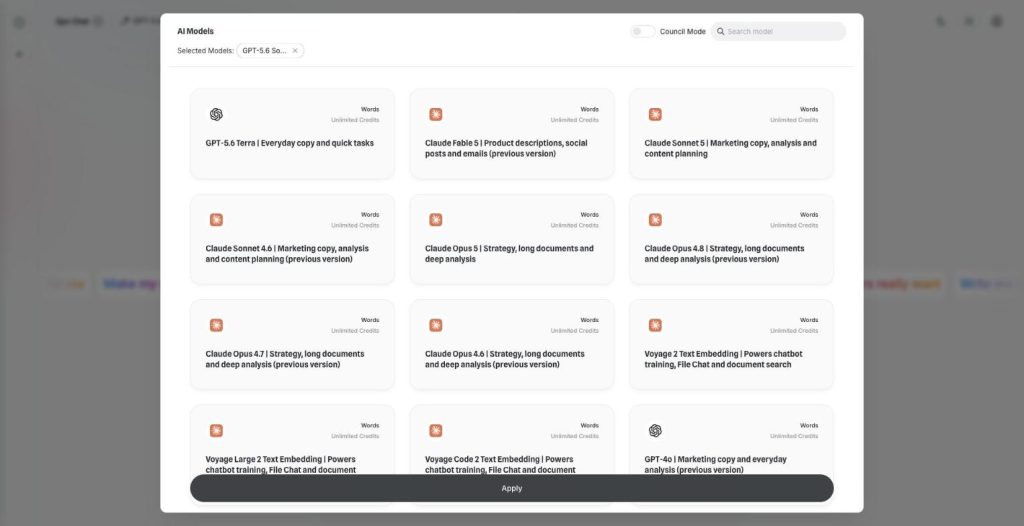
Over 30 AI models, one chat window
AI Chat Pro puts all AI models in one place: GPT, Claude, Gemini, Grok and DeepSeek in one chat. Pick the right model for each task and switch in the middle of a conversation.
-
Multi-model chat
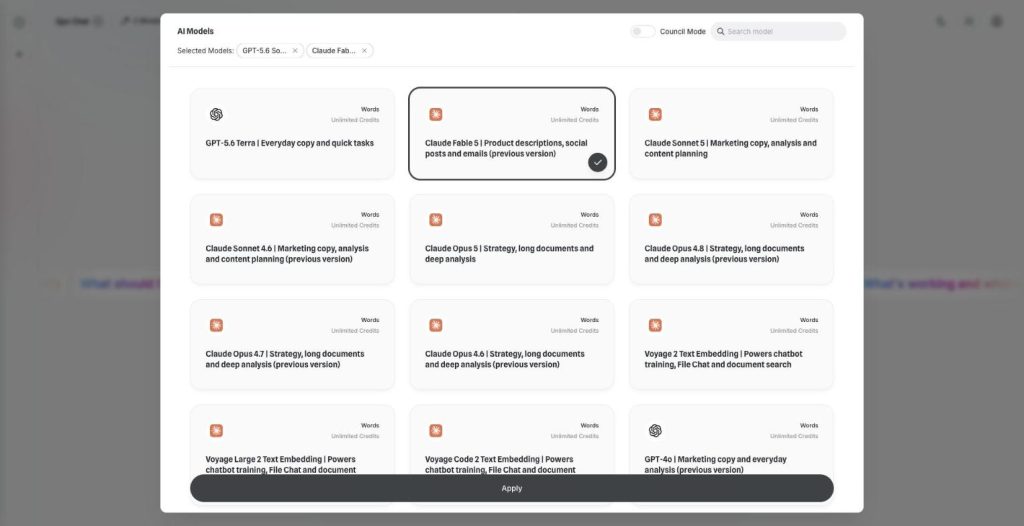
Ask every model at once
Multi-model chat lets you compare AI models side by side. Pick two models, send one prompt and read both answers next to each other before you decide which one to use.
-
Council Mode
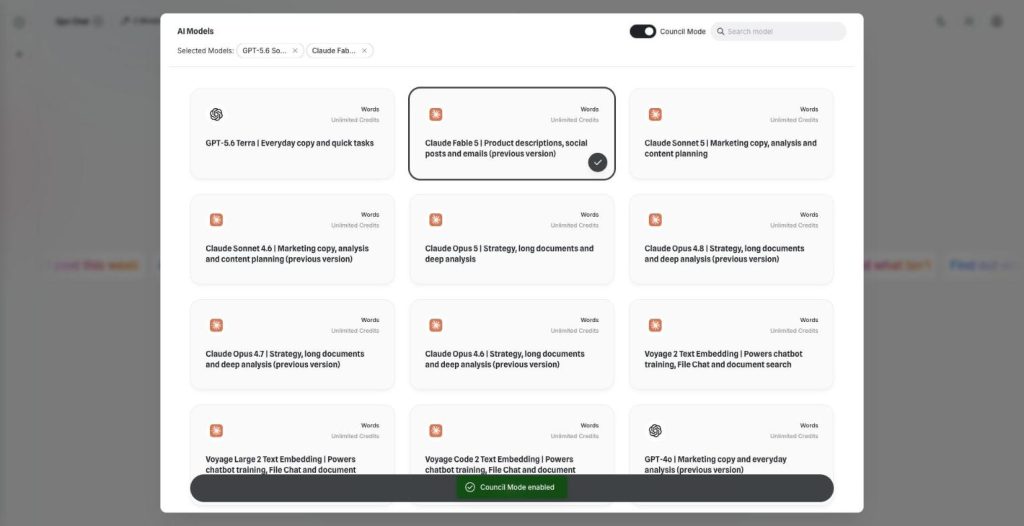
Let the best models agree
AI Council Mode runs two to five models on the same question, shows where they agree and disagree, and writes one consensus answer with a confidence score.
-
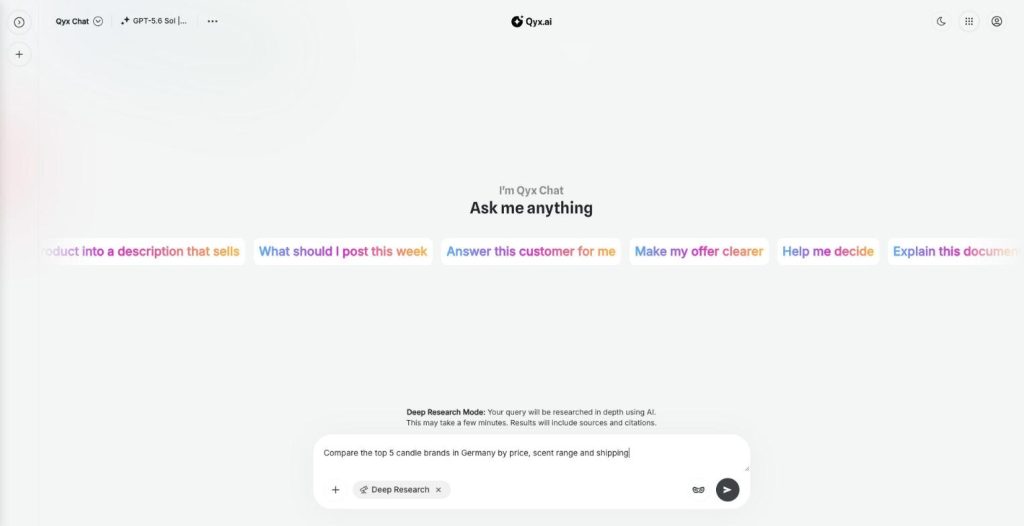
Deep Research
Research anything, with sources
AI deep research in Qyx turns your question into a multi-step investigation of the web. It reads many sources, writes a detailed report with citations and opens it in Canvas.
-
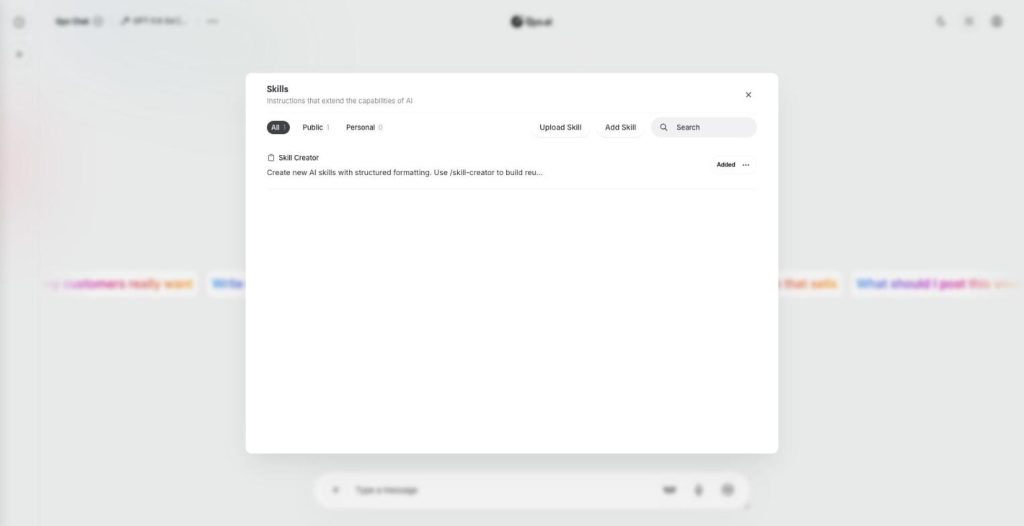
Skills
Teach your AI new skills
Skills are custom AI skills for AI Chat Pro: saved instructions that teach the AI your process. Create one with the Skill Creator or upload a SKILL.md file, and the AI follows it every time.
-
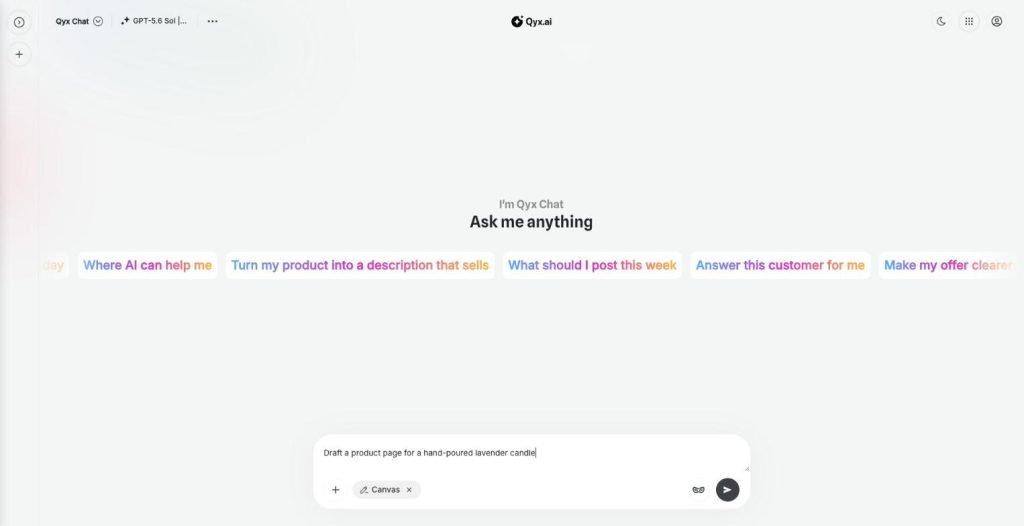
Canvas
Write and edit right inside the chat
Canvas is the AI canvas editor in AI Chat Pro. It opens a document next to the chat, so you write, edit and keep long texts and research reports without copying them anywhere else.
-
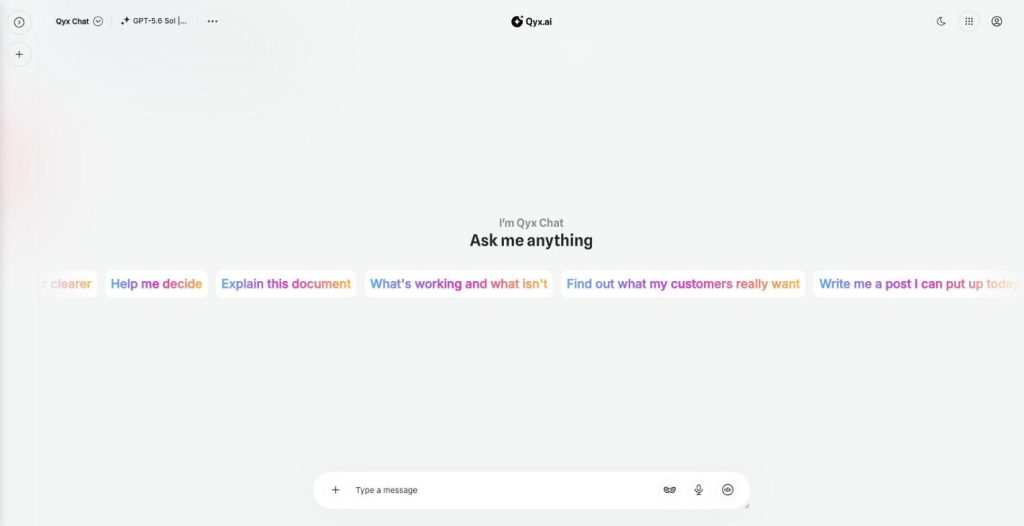
Realtime voice chat
Talk to AI out loud
Realtime voice chat makes AI Chat Pro an AI voice chat you can talk to hands free. Speak naturally, interrupt when you want, and hear the answer right away.
-
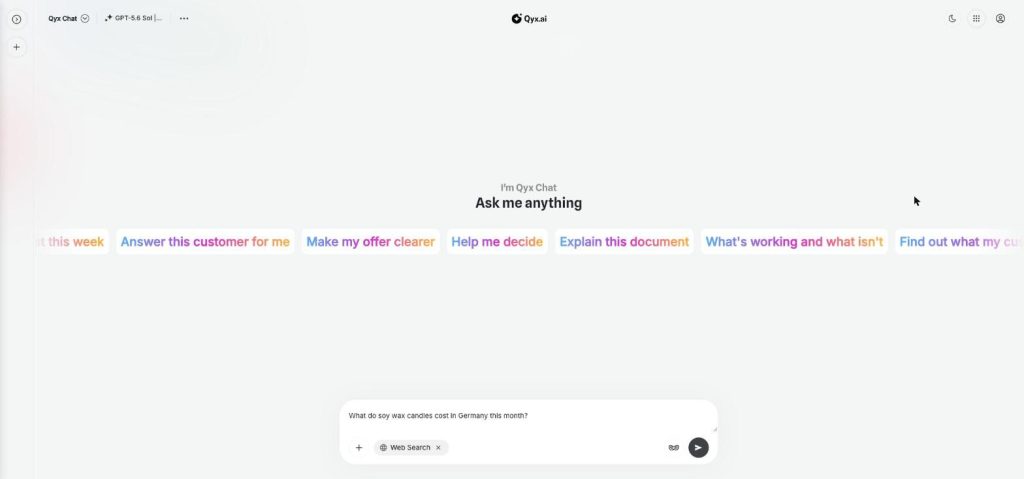
Web search
Fresh answers from the web
Web search adds AI web search to every chat in AI Chat Pro. Turn it on, and the AI looks up live results from the internet before it answers, so prices or dates match today.
-
Document chat
Ask your documents anything
Document chat lets you chat with PDF files, Word documents and images in AI Chat Pro. Upload a file, ask questions, get summaries and pull out the facts you need.
-
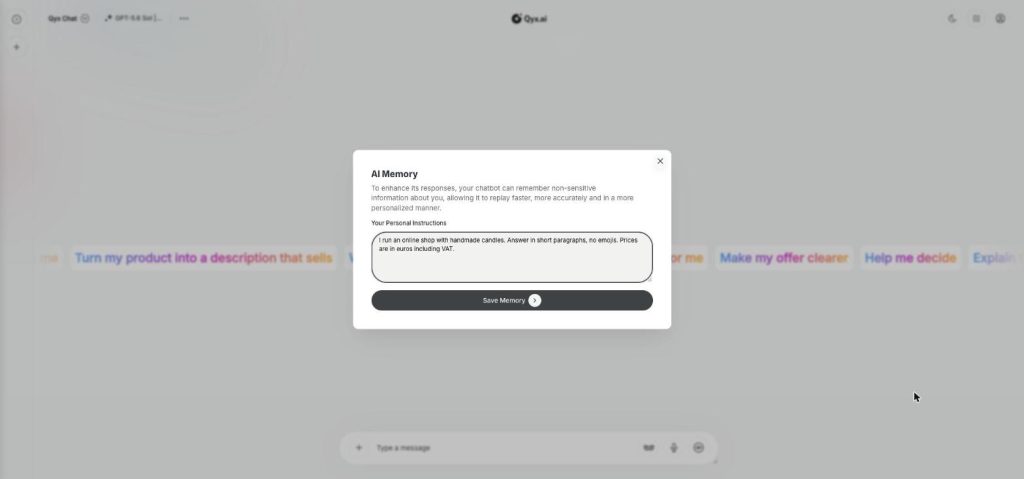
Smart memory
An AI that remembers you
AI Memory gives AI Chat Pro a memory of your personal instructions. Tell it once who you are and how you like answers, and every chat starts with that context.
-
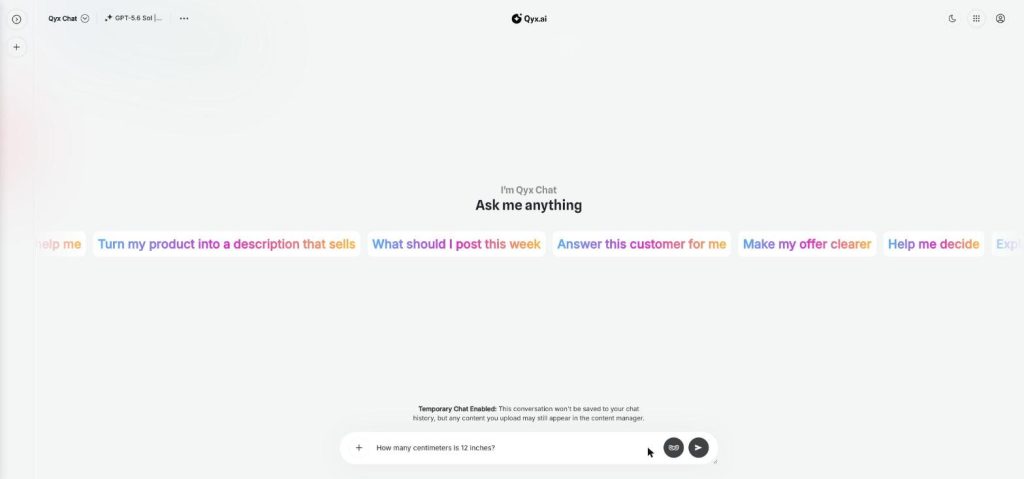
Temporary chat
Chat without leaving a trace
Temporary chat is a private AI chat mode in AI Chat Pro. Start a conversation that is not saved to your chat history, for quick questions or topics you don't want in your list.
Connect your apps and ask with context
From $29/month · 7-day money-back guarantee · Cancel anytime