AI Chat Pro · Canvas
Write and edit right inside the chat
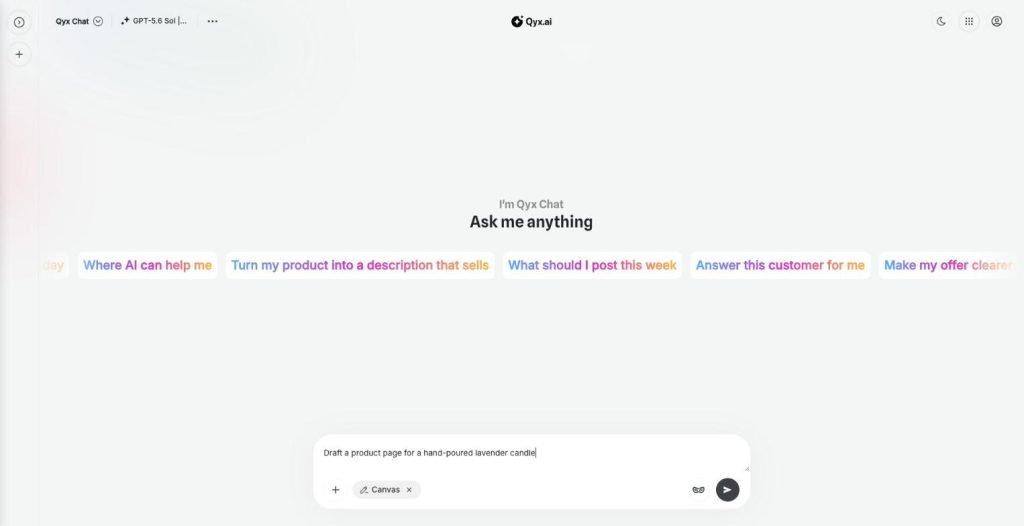
Canvas is the AI canvas editor in AI Chat Pro. It opens a document next to the chat, so you write, edit and keep long texts and research reports without copying them anywhere else.
- Document panel next to the chat
- Edit AI answers directly
- Deep Research reports open here
- Resizable side by side view
Open Canvas from the plus menu.
- Top models in one login
- Works in your browser
- Cancel anytime
Long texts get lost in the chat
A good draft scrolls away under ten follow-up messages, and you copy pieces into a document by hand.
My best draft is buried in a long chat.
I copy every AI answer into Google Docs.
Small changes mean asking the AI to rewrite everything.
One document next to the chat:
- Side by side view
- Direct editing
- AI edits
- Research reports
- Citations kept
- Saved with the chat
How It Works
A simple three-step process, start to finish.
-
Open Canvas
Choose Canvas in the plus menu or open an answer in Canvas.
-
Write together
Edit the text yourself or ask the AI to change parts.
-
Keep it
The document stays with the chat, ready to use.
Why writers use an AI canvas editor
Drafts stay in one place.
Edits without rewriting everything.
Research and writing side by side.
Good to know before you start
Canvas is the AI canvas editor in AI Chat Pro. It opens a document panel next to the conversation. The chat stays on one side for instructions and questions, and the text you are building lives on the other side, where you can edit it directly.
How the AI canvas editor works
Choose Canvas in the plus menu, or click the Canvas button on an AI answer to open it there. You can type into the document yourself or ask the AI in the chat to rewrite a paragraph, shorten a section or change the tone. The panel can be resized, so you decide how much space the document gets.
Research reports in Canvas
Reports from Deep Research open in Canvas automatically. The citations keep their styling, so you can see which sentence comes from which source while you edit the report into your own text.
What to write in Canvas
Blog articles, landing page copy, product descriptions for a whole collection, email sequences, proposals, research summaries and internal guides. Anything longer than a few paragraphs is easier to handle in a document than in chat bubbles.
Canvas or a separate document
A separate editor makes sense for files your whole team edits together. Canvas is better while the text is still taking shape, because the conversation that explains each change stays right next to it. When the draft is final, copy it to your website, shop or document tool.
Who uses it
Content writers who build articles section by section. Founders polishing an investor update. Shop owners rewriting descriptions for a whole category in one sitting. Consultants turning research into a client-ready summary without switching between windows.
Tips for an AI canvas editor workflow
Start with an outline in the chat, then open Canvas and let the AI fill one section at a time. Edit small things yourself instead of asking the AI. Use a skill for texts you write often, so every draft starts with your rules. Before publishing, read the whole document once, out loud if you can.
Questions, answered
It is the Qyx AI canvas editor, a document panel next to the chat where you write and edit long texts.
Yes. Type directly in the document, or ask the AI to change parts of it.
Yes. They open there with their citations.
Yes. Canvas content is saved with the chat.
Yes. Drag the edge to give the document more or less space.
More AI Chat Pro features
-
All Models
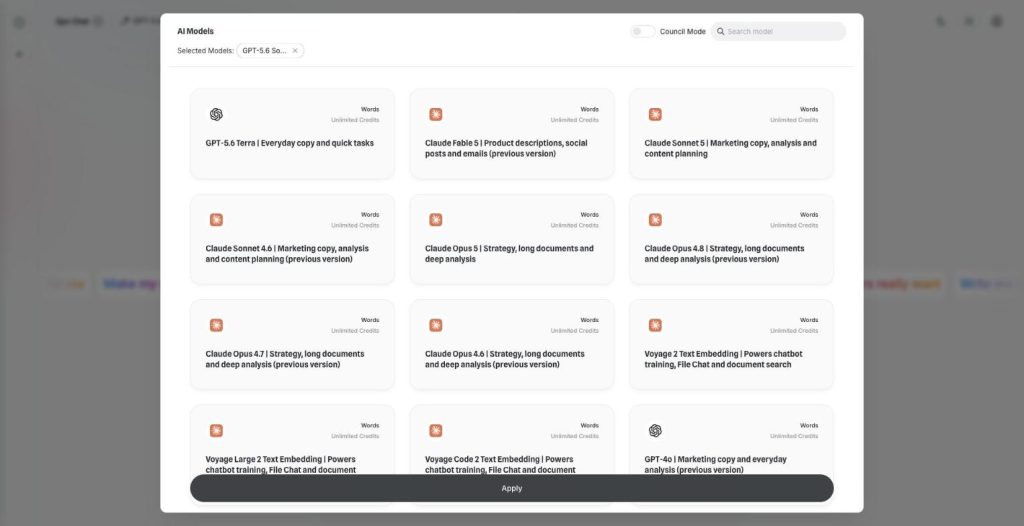
Over 30 AI models, one chat window
AI Chat Pro puts all AI models in one place: GPT, Claude, Gemini, Grok and DeepSeek in one chat. Pick the right model for each task and switch in the middle of a conversation.
-
Multi-model chat
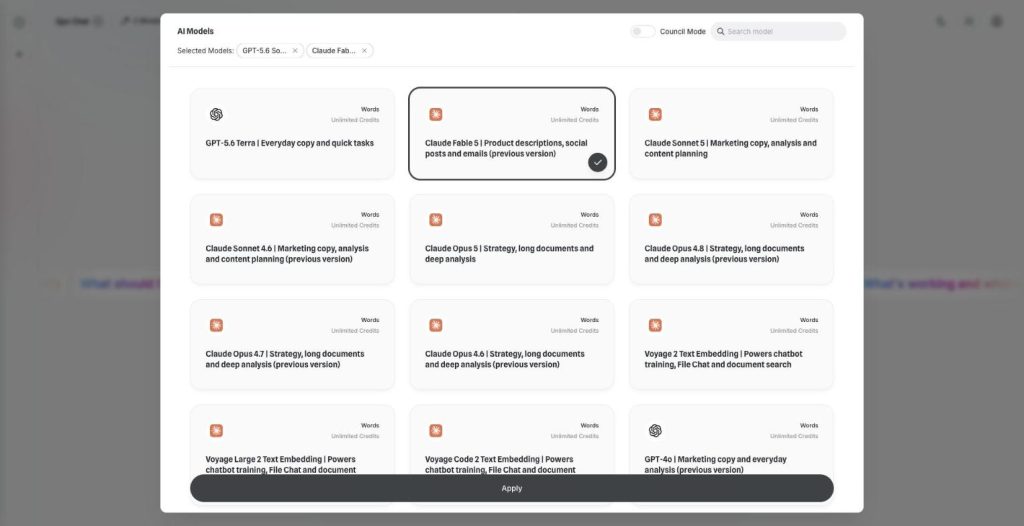
Ask every model at once
Multi-model chat lets you compare AI models side by side. Pick two models, send one prompt and read both answers next to each other before you decide which one to use.
-
Council Mode
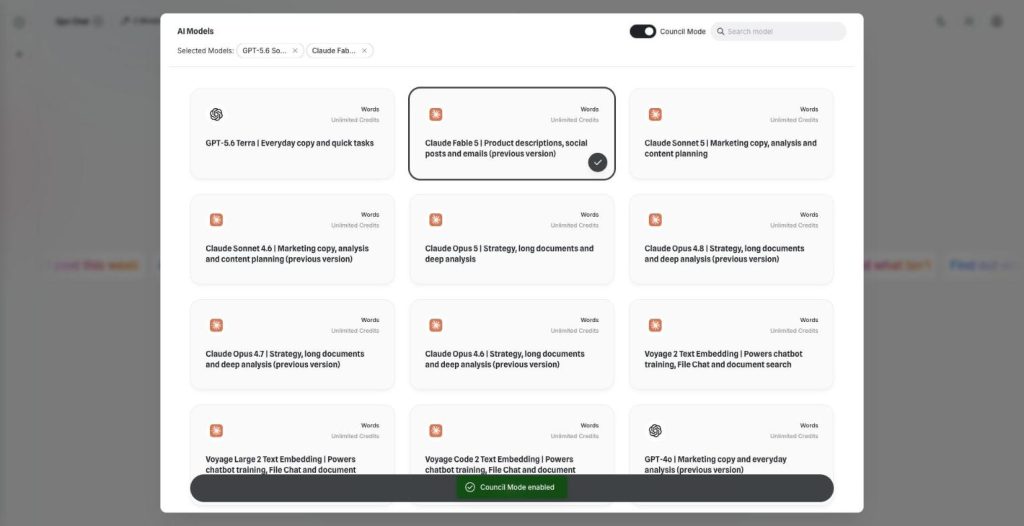
Let the best models agree
AI Council Mode runs two to five models on the same question, shows where they agree and disagree, and writes one consensus answer with a confidence score.
-
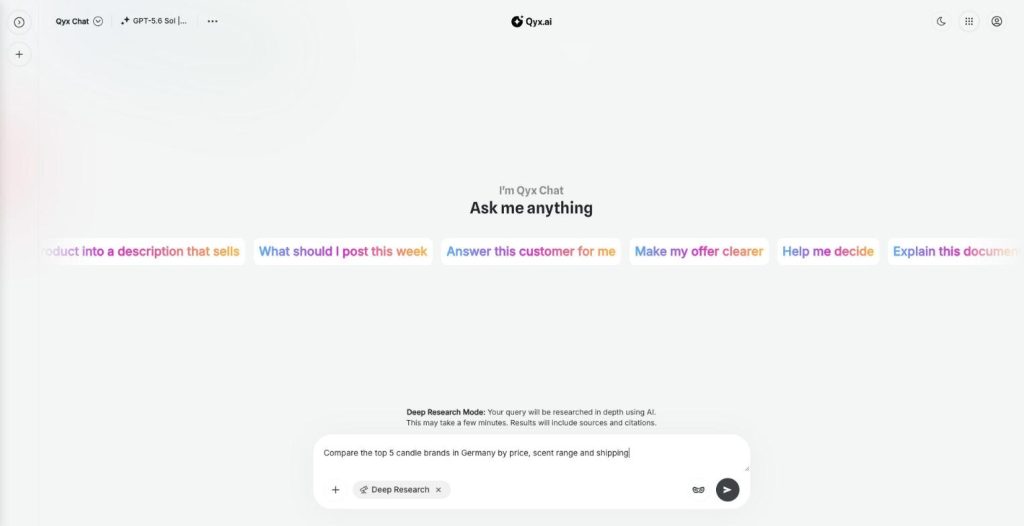
Deep Research
Research anything, with sources
AI deep research in Qyx turns your question into a multi-step investigation of the web. It reads many sources, writes a detailed report with citations and opens it in Canvas.
-
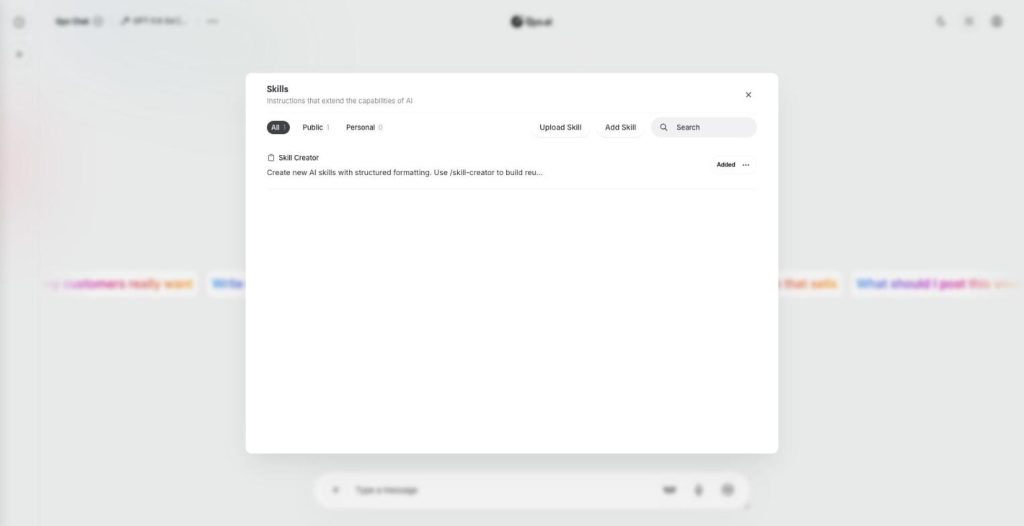
Skills
Teach your AI new skills
Skills are custom AI skills for AI Chat Pro: saved instructions that teach the AI your process. Create one with the Skill Creator or upload a SKILL.md file, and the AI follows it every time.
-
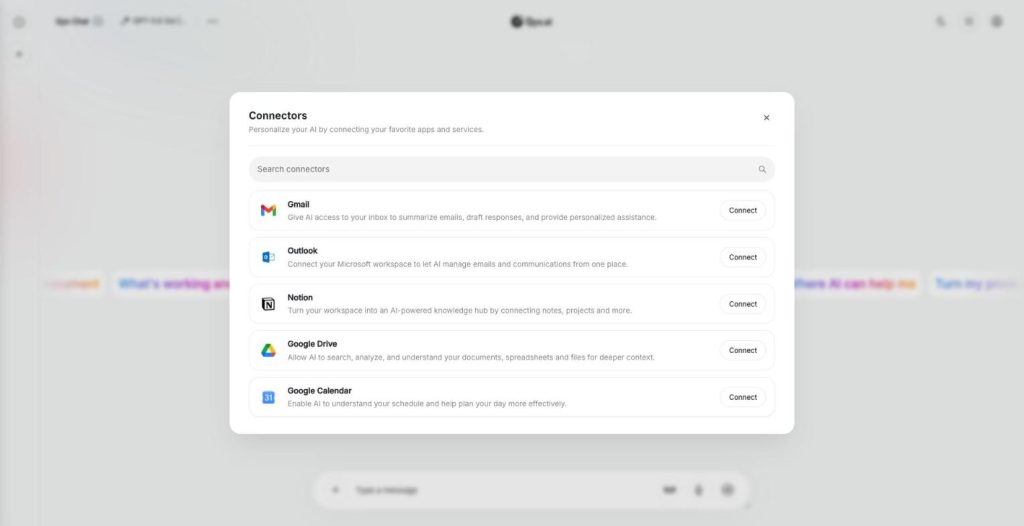
Connectors
Connect your own tools and context
AI connectors link AI Chat Pro to Gmail, Outlook, Notion, Google Drive and Google Calendar. The AI then reads your real emails, notes, files and meetings and answers with your own context.
-
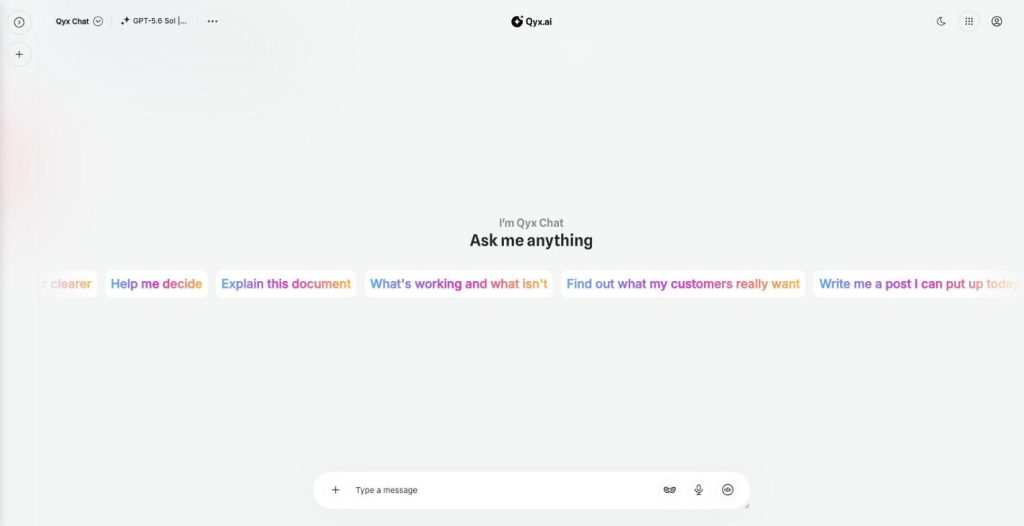
Realtime voice chat
Talk to AI out loud
Realtime voice chat makes AI Chat Pro an AI voice chat you can talk to hands free. Speak naturally, interrupt when you want, and hear the answer right away.
-
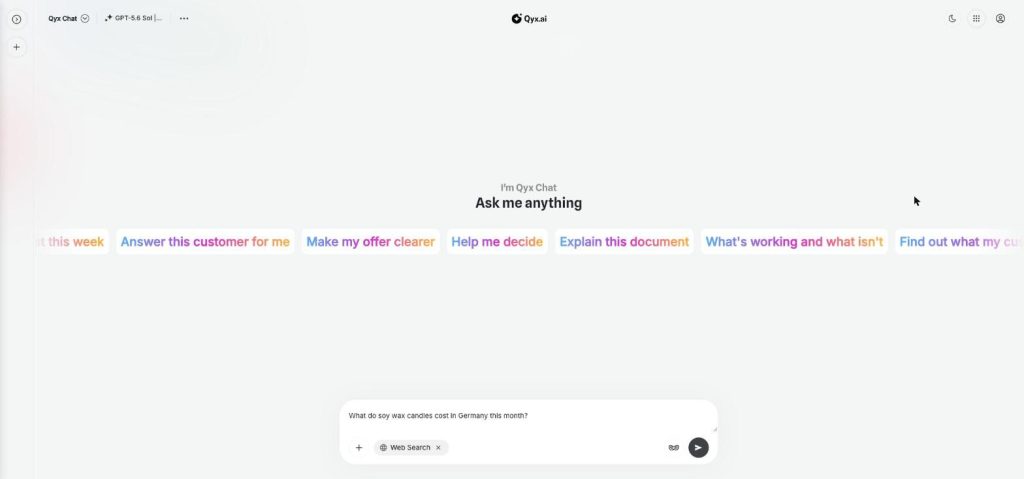
Web search
Fresh answers from the web
Web search adds AI web search to every chat in AI Chat Pro. Turn it on, and the AI looks up live results from the internet before it answers, so prices or dates match today.
-
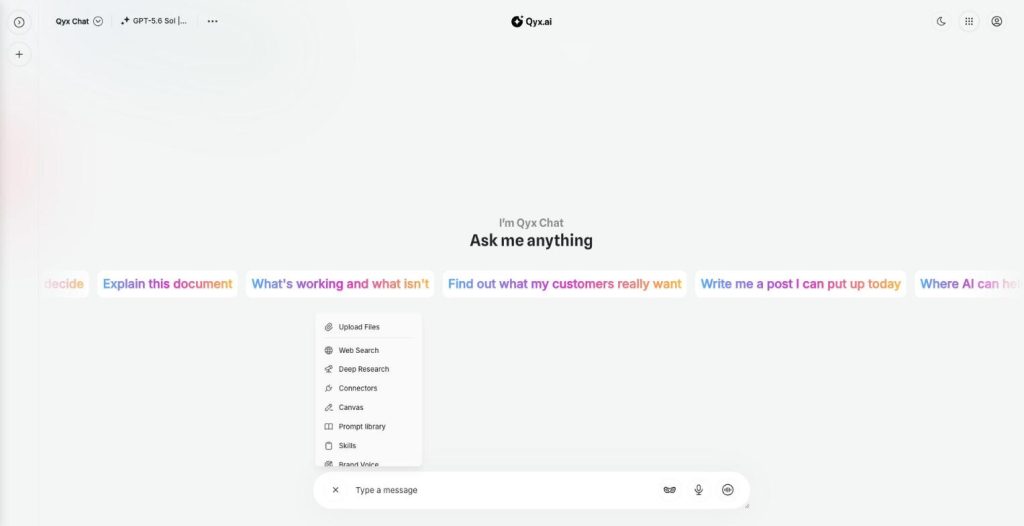
Document chat
Ask your documents anything
Document chat lets you chat with PDF files, Word documents and images in AI Chat Pro. Upload a file, ask questions, get summaries and pull out the facts you need.
-
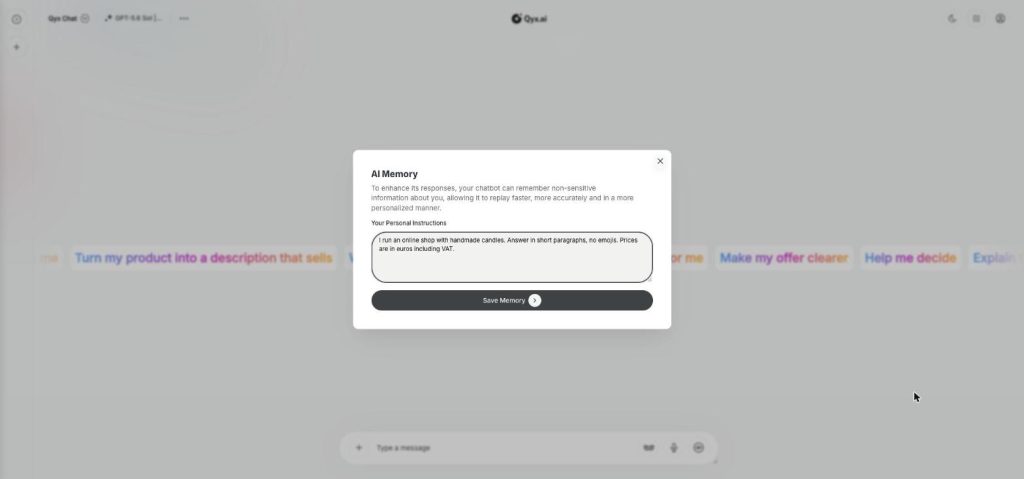
Smart memory
An AI that remembers you
AI Memory gives AI Chat Pro a memory of your personal instructions. Tell it once who you are and how you like answers, and every chat starts with that context.
-
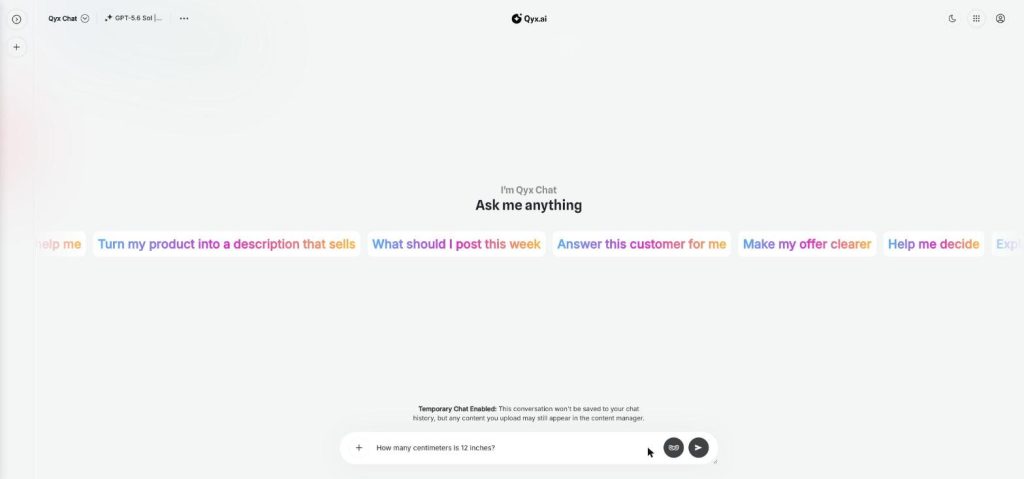
Temporary chat
Chat without leaving a trace
Temporary chat is a private AI chat mode in AI Chat Pro. Start a conversation that is not saved to your chat history, for quick questions or topics you don't want in your list.
Write your next long text in Canvas
From $29/month · 7-day money-back guarantee · Cancel anytime