AI Video Pro · Background Removal
Remove the background from any video
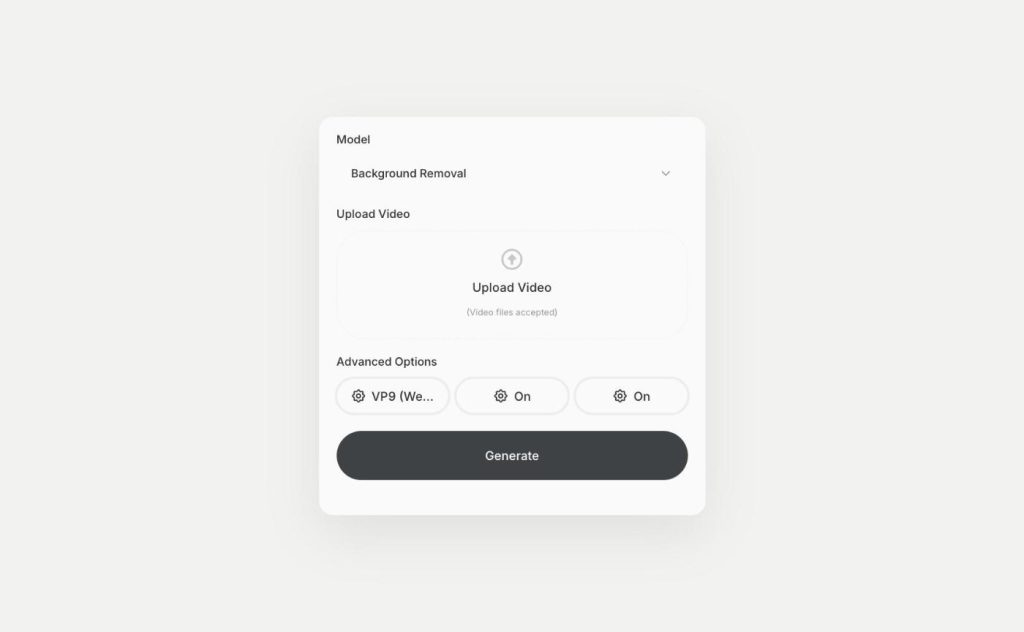
Video background remover in Qyx cuts the person or product out of your clip. Upload a video and download it with a transparent background as WebM or H264.
- Transparent video output
- VP9 WebM or H264 with alpha
- Refined foreground edges
- Person mode for people on camera
Upload a clip and download it transparent.
- No green screen
- No rotoscoping by hand
- Cancel anytime
Green screen isn't an option
You filmed in the office or the shop, and now the background has to go for the ad.
I filmed without a green screen and the background is a mess.
Cutting out a person frame by frame takes days.
I want to put my presenter over a new scene.
One step to a clean cutout:
- Video upload
- Transparent output
- VP9 WebM with alpha
- H264 with alpha
- Edge refinement
- Person detection
How It Works
A simple three-step process, start to finish.
-
Upload the video
Choose Background Removal in AI Video Pro and add your clip.
-
Set the options
Pick the output codec, edge refinement and person mode.
-
Download the cutout
Get the clip with a transparent background and place it on any scene.
Why editors use a video background remover
Presenters over any background, without a studio.
Products on clean or branded scenes.
Cutouts ready for overlays and ads.
Good to know before you start
Video background remover is a mode in AI Video Pro that separates the person or product in your clip from everything behind it. You upload a video, and Qyx returns the same clip with a transparent background, ready to place over any scene.
Settings in the video background remover
Output Codec decides the file you get. VP9 (WebM with alpha) keeps transparency in a small WebM file that works on the web and in many editors. H264 (RGB + alpha) is the option for tools that need an H264 file. Refine Foreground Edges cleans up hair and fine edges. Subject is Person tells the model that the main subject is a person, which helps with talking-head clips.
What to use a transparent video for
Put a presenter over a product shot, a city or your brand colours. Place a product clip on a clean background for a marketplace listing. Layer a cutout over another video in an ad, or use it as an overlay on a website hero. Because the background is transparent, you decide later what goes behind.
Who uses transparent video
Coaches and consultants record themselves at a desk and later appear in front of slides or product screens. Online shops cut out a product that spins on a turntable and drop it onto seasonal scenes. Agencies reuse one presenter recording across several client backgrounds. Social media teams build reaction videos where the person sits over the clip they talk about.
Getting a clean cutout
Film with good light and some contrast between the subject and the background. Avoid clothes in the same colour as the wall behind you. Keep the subject fully in frame, because the edges of the image are the hardest part. If hair or motion blur looks rough, turn on Refine Foreground Edges and try again.
Tips for the video background remover workflow
Remove the background first, then edit. Put the cutout on a new scene in AI Video Editor, or generate the new background clip with text to video. For a still product photo, use AI Image Editor instead, which removes backgrounds from images.
Questions, answered
It removes the background from your video and returns the clip with a transparent background.
VP9 WebM with alpha or H264 with alpha, depending on the Output Codec you choose.
No. The model separates the subject from a normal background.
Yes. Turn on Subject is Person for talking-head and presenter clips.
Turn on Refine Foreground Edges and use footage with good light and contrast.
More AI Video Pro features
-
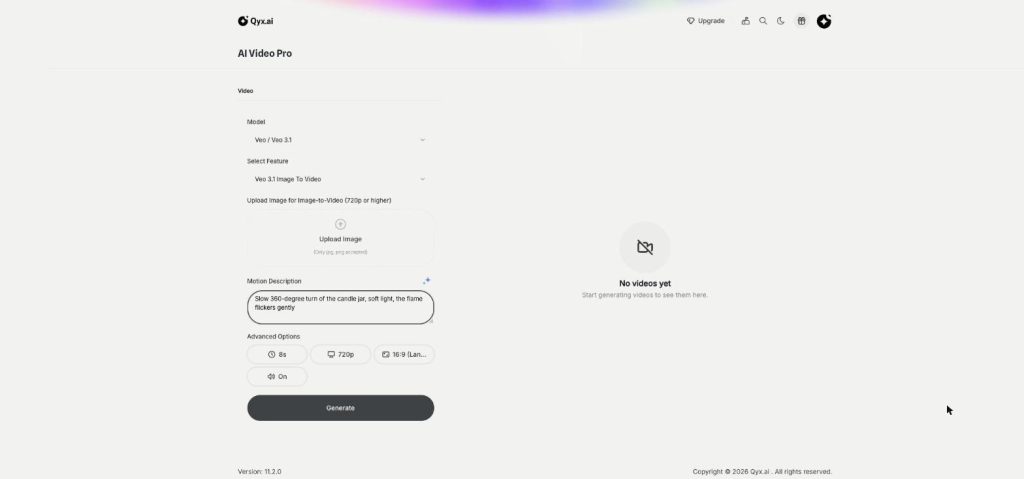
Image to Video
Turn a product photo into a video
Image to video AI in Qyx turns one product photo into a short video. Upload the photo, describe the motion and pick Veo, Kling, Seedance or another model.
-
Text to Video
Cinematic video from a single line
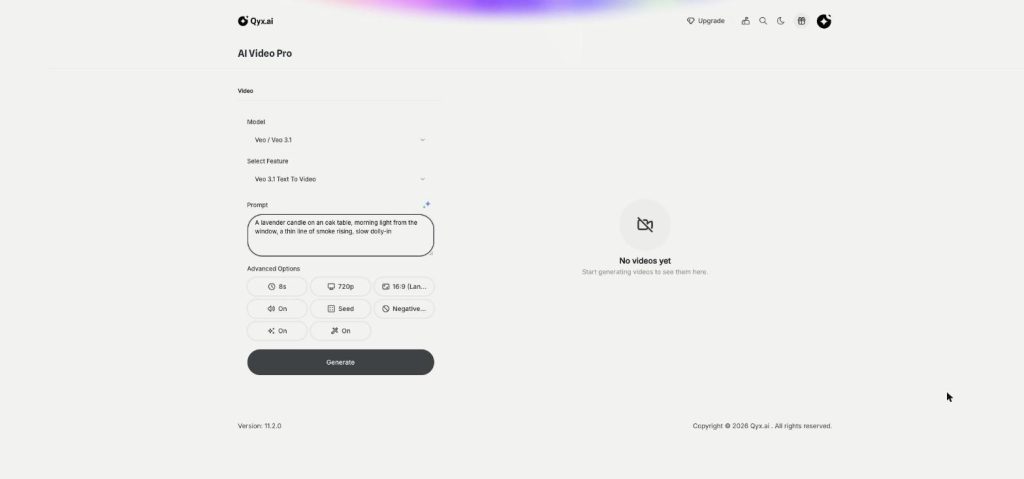
Text to video AI in Qyx turns one written prompt into a video scene. Describe the shot, pick Veo, Kling, Seedance or another model, and download the clip.
-
First and Last Frame
Frame to frame, fully controlled
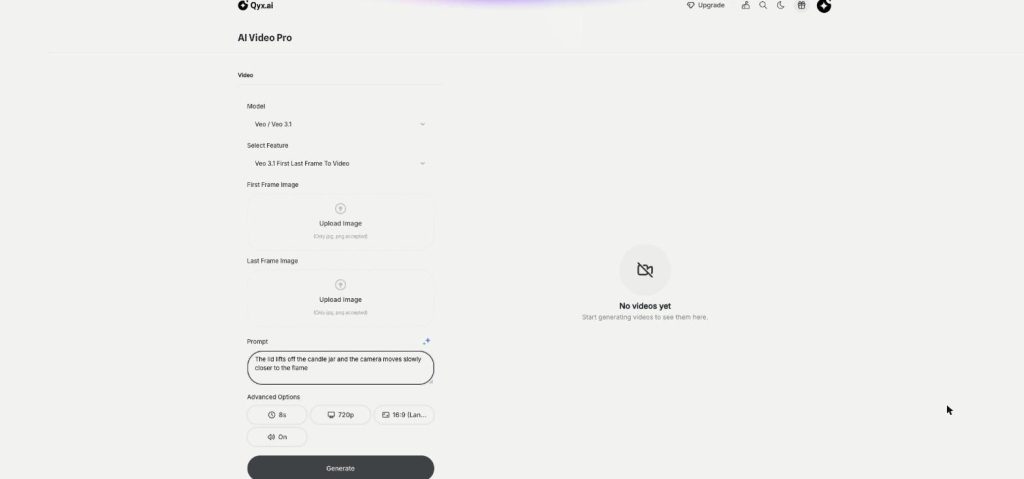
First and last frame video in Qyx lets you set where a clip starts and where it ends. Upload two images, describe the move between them, and the model fills in the motion.
Remove the background from your next clip
From $29/month · 7-day money-back guarantee · Cancel anytime