AI Video Pro · Text to Video
Cinematic video from a single line
Text to video AI in Qyx turns one written prompt into a video scene. Describe the shot, pick Veo, Kling, Seedance or another model, and download the clip.
- Veo 3.1, Kling, Seedance, Grok, Gemini and Minimax
- Video with sound on Veo and Gemini Omni Flash
- 720p or 1080p on Veo
- Negative prompt and seed
Describe the scene in one or two sentences.
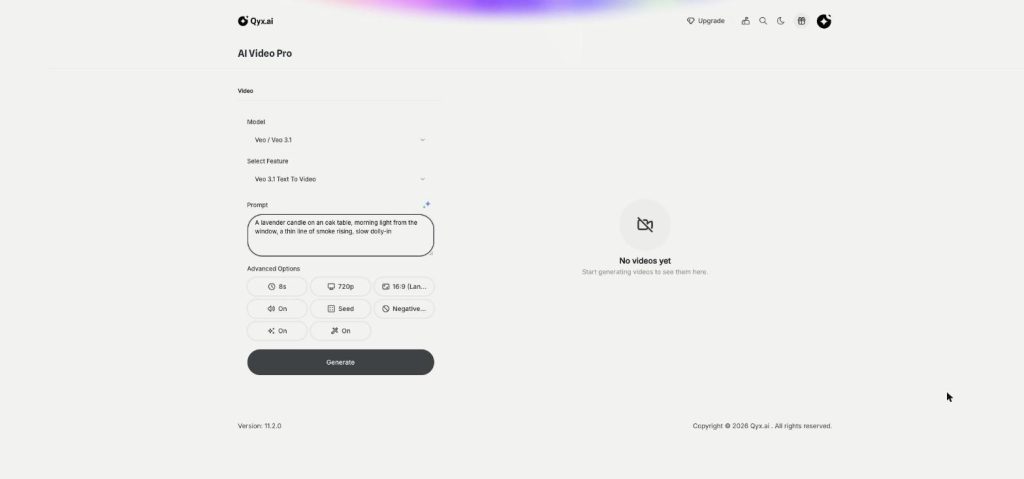
- No footage needed
- No editing software
- Cancel anytime
Stock footage looks like stock
Every brand scrolls the same stock libraries, and the clip you need for your ad never quite exists.
The stock clips I find are used in hundreds of other ads.
Filming one short scene costs more than the whole campaign.
I know the shot I want, but nobody to film it.
One prompt, one scene:
- Text to video
- Several video models
- Sound on Veo and Gemini
- Horizontal or vertical
- Negative prompt
- Seed for repeatable results
How It Works
A simple three-step process, start to finish.
-
Pick a model
Choose Veo for story scenes, Kling for motion or Minimax for quick drafts.
-
Write the prompt
Describe the subject, the setting, the action, the light and the camera.
-
Generate and download
Set length, resolution and format, then download the clip.
Why marketers use text to video AI
Scenes that fit your brand, not a stock library.
Several takes of one idea in minutes.
B-roll for ads, reels and product pages.
Good to know before you start
Text to video AI in Qyx creates a video scene from a written prompt. It is part of AI Video Pro. You describe what should happen, pick a model and get a short clip for ads, reels or a product page.
Models for text to video AI
Veo 3.1 is labelled best for storytelling and also has faster Fast and Lite variants. Kling, labelled best for motion control, offers text to video in v2.5 Turbo, v2.6 and v3. Seedance 2.0, 2.0 Fast and 2.5 come from ByteDance, Grok Imagine from xAI. Gemini Omni Flash makes video with synchronized audio, and Minimax is the fast, low-cost option for drafts.
Settings you control
On Veo 3.1 you set 720p or 1080p, 16:9 or 9:16 and sound on or off, and every clip runs 8 seconds. A negative prompt tells the model what to leave out, such as text on screen or extra people. A seed lets you repeat a result and change one detail at a time. Kling v3 adds lengths from 3 to 15 seconds and a 1:1 format.
How to write a prompt that works
Name five things: the subject, the setting, the action, the light and the camera move. „A ceramic coffee cup on a wooden counter, morning light from the window, steam rising, slow dolly-in“ gives the model a clear brief. Keep one action per clip. If the product must look exactly like yours, start from a photo with image to video instead.
Scenes that work well
Mood shots for a brand video, such as rain on a city street at night or waves on an empty beach, are easy for the models. So are simple product moments: a drink being poured, a box being opened, a plant in a sunny window. Faces close up, readable text and hands holding small objects are harder, so check those clips twice.
Using text to video AI clips in ads
Generate the same prompt on two models and keep the stronger clip. Make a 9:16 version for Reels and TikTok and a 16:9 version for YouTube. Join several clips, add text and a voiceover in AI Video Editor. Check every frame for odd hands, text or logos before the clip goes live.
Questions, answered
It is the Text to Video mode of AI Video Pro. You write a prompt, pick a model and get a generated video clip.
Veo 3.1, Kling v2.5, v2.6 and v3, Seedance 2.0 and 2.5, Grok Imagine, Gemini Omni Flash and Minimax.
Veo 3.1 lets you turn sound on or off, and Gemini Omni Flash creates video with synchronized audio.
Veo 3.1 clips are 8 seconds. Kling v3 lets you choose from 3 to 15 seconds.
For an exact product, use image to video and start from your own product photo.
More AI Video Pro features
-
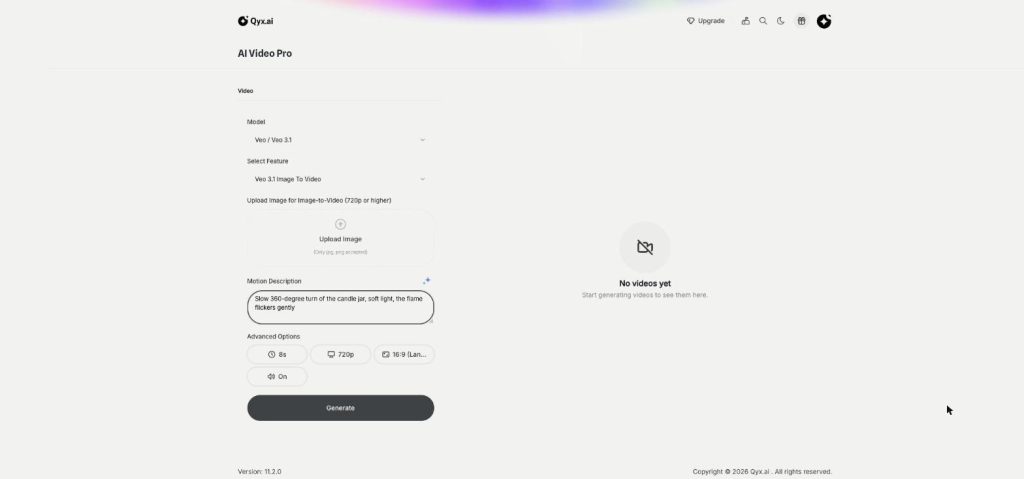
Image to Video
Turn a product photo into a video
Image to video AI in Qyx turns one product photo into a short video. Upload the photo, describe the motion and pick Veo, Kling, Seedance or another model.
-
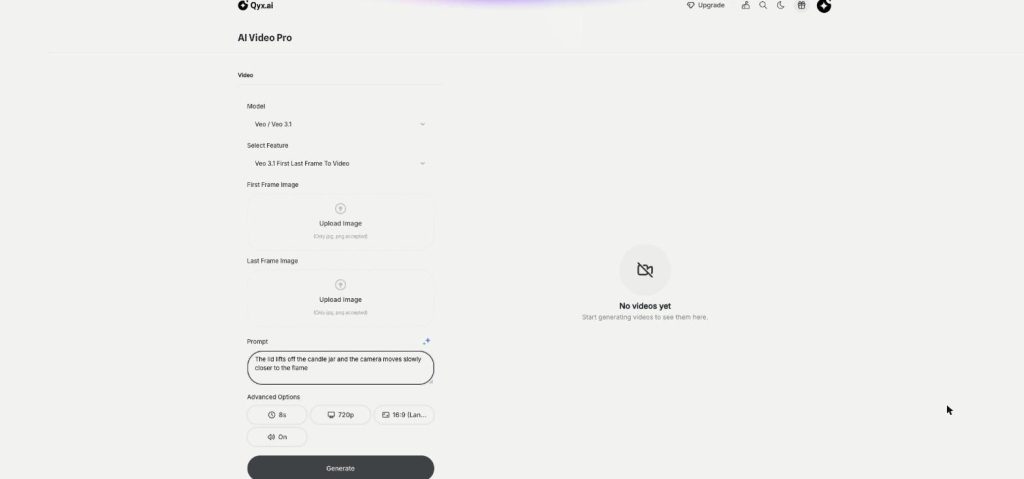
First and Last Frame
Frame to frame, fully controlled
First and last frame video in Qyx lets you set where a clip starts and where it ends. Upload two images, describe the move between them, and the model fills in the motion.
-
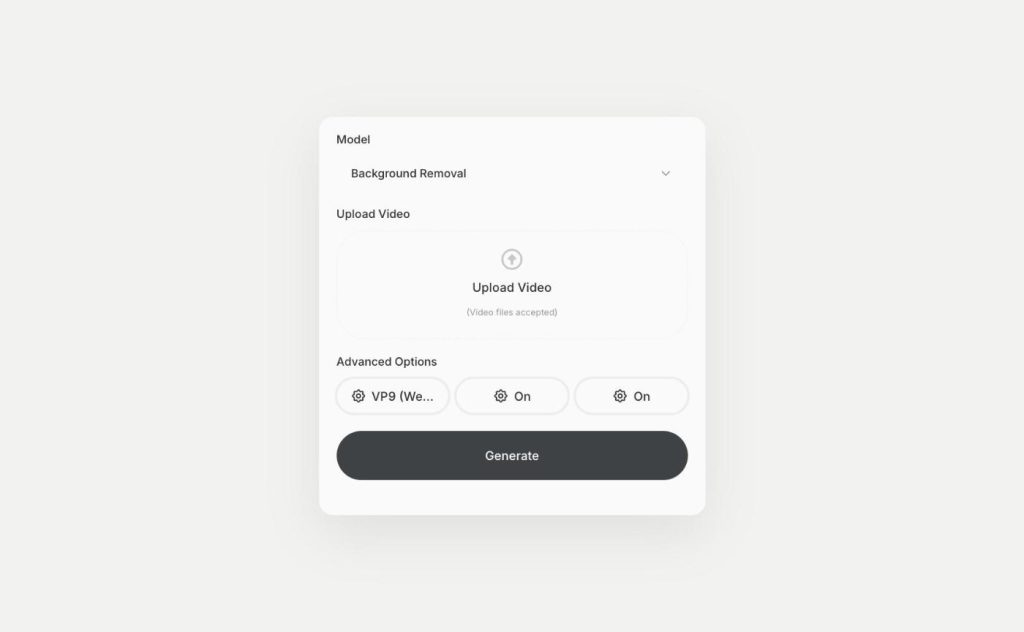
Video Background Removal
Remove the background from any video
Video background remover in Qyx cuts the person or product out of your clip. Upload a video and download it with a transparent background as WebM or H264.
Write your first scene and generate it
From $29/month · 7-day money-back guarantee · Cancel anytime