AI Video Pro · Image to Video
Turn a product photo into a video
Image to video AI in Qyx turns one product photo into a short video. Upload the photo, describe the motion and pick Veo, Kling, Seedance or another model.
- Veo 3.1, Kling, Seedance, Grok and Gemini
- Up to 15 seconds with Kling v3
- Vertical 9:16 or horizontal 16:9
- Sound on or off
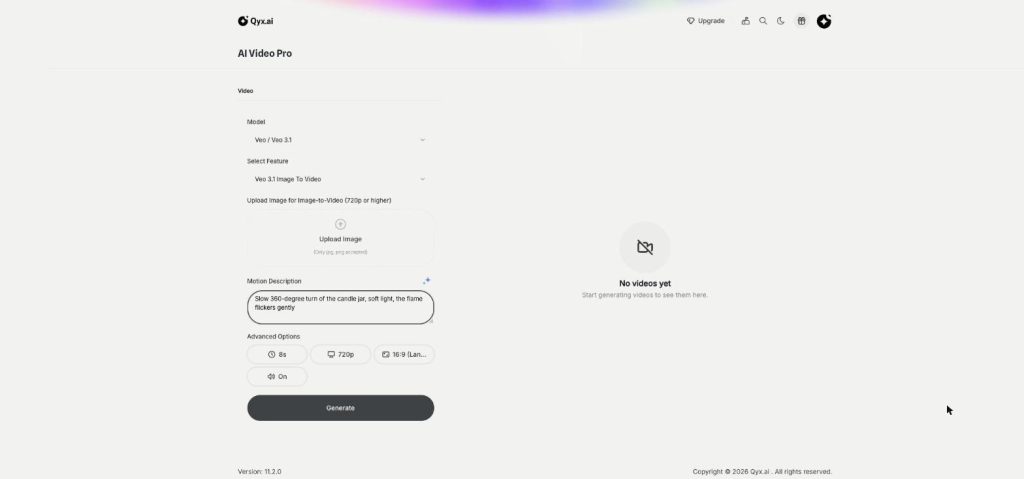
Upload a photo and describe the motion.
- No camera needed
- Works from one JPG or PNG
- Cancel anytime
Your products only have photos
Video ads and reels need moving pictures, and most of your catalog only has a few still shots.
I have great product photos, but no video for ads.
A video shoot for each product is out of budget.
Static images get scrolled past on Reels and TikTok.
One photo, one video:
- Image to video
- Motion described in words
- Several video models
- Vertical or horizontal
- Sound on or off
- Optional end frame
How It Works
A simple three-step process, start to finish.
-
Upload the photo
Add a JPG or PNG of the product, at least 720p for Veo.
-
Describe the motion
Write how the product and the camera should move.
-
Pick a model and generate
Choose Veo, Kling or Seedance, set length and format, and download the clip.
Why sellers use image to video AI
Video for products you never filmed.
A vertical clip for Reels from the same photo.
Several versions to test in ads.
Good to know before you start
Image to video AI in Qyx animates a still photo into a short video clip. It is part of AI Video Pro. You upload a product photo, describe how it should move, and a video model renders the clip, so a store with only packshots can still run video ads.
Models for image to video AI
You choose the model per clip. Veo 3.1 has Image To Video, plus faster Fast and Lite variants. Kling offers image to video in v2.5 Turbo, v2.6 and v3. Seedance 2.0, 2.0 Fast and 2.5, Grok Imagine and Gemini Omni Flash animate images too. Kling v2.6 also has Motion Control, which copies the movement from a reference video onto your image.
Settings for each clip
With Veo you get 8-second clips in 720p or 1080p, as horizontal 16:9 or vertical 9:16, with sound on or off. Kling v3 lets you set the length from 3 to 15 seconds, adds 1:1 square, a negative prompt and a CFG scale that controls how closely the model follows your text. Kling v3 and Seedance also accept an optional end frame, so the clip finishes on the shot you choose.
Describe the motion, not the product
The model already sees the product in your photo. Use the Motion Description to say what should change: a slow push-in, a 360-degree turn, steam rising from a cup, a hand picking the bottle up. Name the camera move and the speed. One clear action per clip works better than three.
Ideas for product clips
A cosmetics brand can show a cream jar opening with a soft camera move. For a coffee shop, the model adds steam and morning light to a cup. Fashion stores let a jacket sway in the wind on a hanger, and a furniture store can slowly orbit a chair in a bright room. Each clip starts from a photo you already have.
Tips for better image to video AI results
Start from a sharp photo with the whole product in frame and some space around it. For Veo, upload at least 720p in JPG or PNG. Generate two or three versions on different models and keep the one where the label, the shape and the colour stay true to the real product. To cut several clips into one ad, use AI Video Editor. If you have no photo yet, start with AI Photoshoot.
Questions, answered
It is the Image to Video mode of AI Video Pro. You upload a photo, describe the motion and a model such as Veo or Kling turns it into a video.
JPG or PNG. For Veo 3.1 the image should be at least 720p.
Veo 3.1 makes 8-second clips. Kling v3 lets you choose from 3 to 15 seconds.
Yes. Choose 9:16 portrait for Reels, TikTok and Shorts, or horizontal 16:9.
Yes. Kling v3 and Seedance accept an optional end frame image.
More AI Video Pro features
-
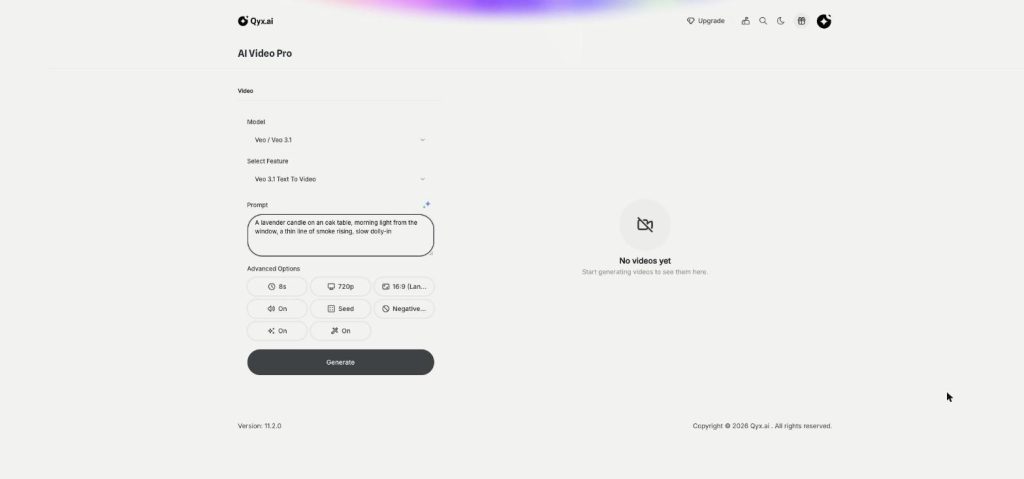
Text to Video
Cinematic video from a single line
Text to video AI in Qyx turns one written prompt into a video scene. Describe the shot, pick Veo, Kling, Seedance or another model, and download the clip.
-
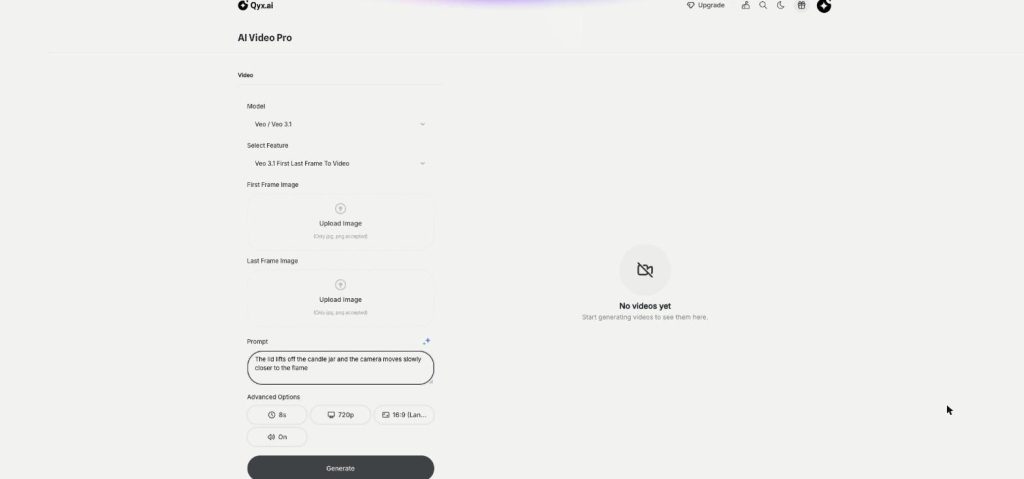
First and Last Frame
Frame to frame, fully controlled
First and last frame video in Qyx lets you set where a clip starts and where it ends. Upload two images, describe the move between them, and the model fills in the motion.
-
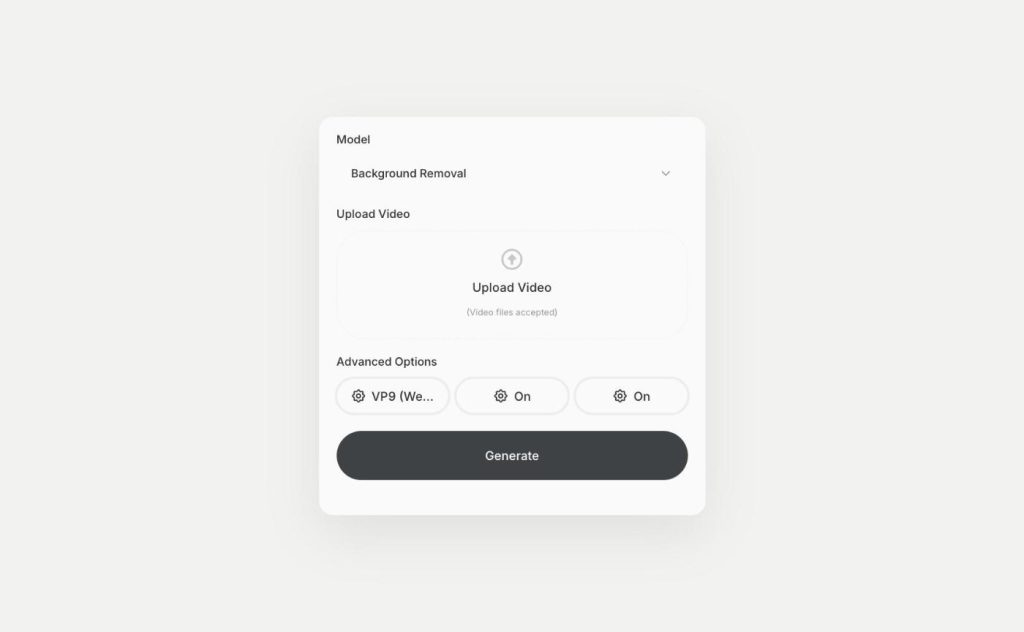
Video Background Removal
Remove the background from any video
Video background remover in Qyx cuts the person or product out of your clip. Upload a video and download it with a transparent background as WebM or H264.
Turn your best product photo into a video
From $29/month · 7-day money-back guarantee · Cancel anytime