AI Video Pro
Turn a photo or a prompt into a video
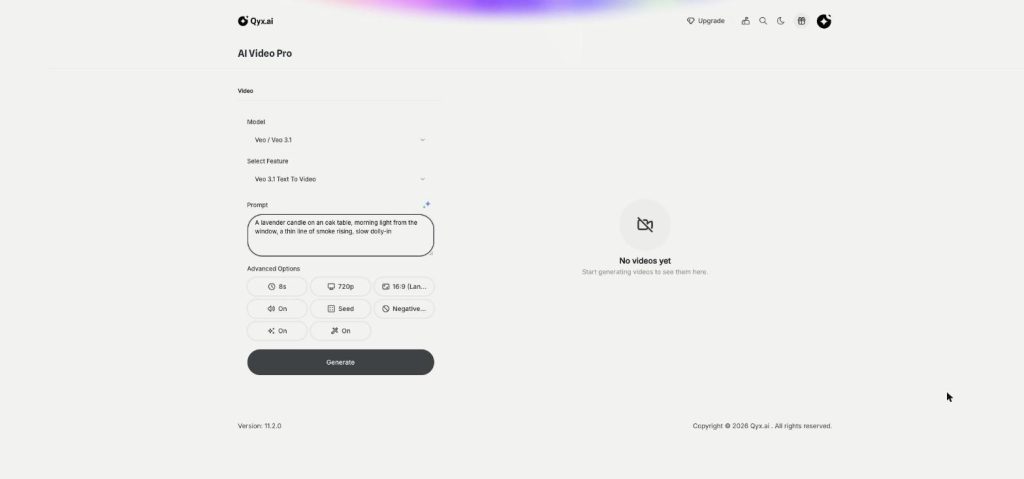
AI Video Pro is the AI video generator in Qyx. Animate a product photo, write a prompt, or set the first and last frame, then pick Veo, Kling, Seedance or another model to render it.
- Veo, Kling, Seedance and more in one login
- Text to video and image to video
- First and last frame control
- Background removal for video
Pick a model and describe the shot.
- Several top video models in one login
- No editing software to learn
- Cancel anytime
Video ads take too long to make
You need video for every product and every channel, and a shoot for each one doesn't fit the budget.
I need video for every product, but a shoot per product is out of budget.
I pay for separate video AI tools and still compare them by hand.
My ads look the same because I reuse the same clip.
One place to make product videos:
- Image to video
- Text to video
- First and last frame
- Reference to video
- Video background removal
- Several models, one subscription
Everything in AI Video Pro
Pick a function to see how it works.
-
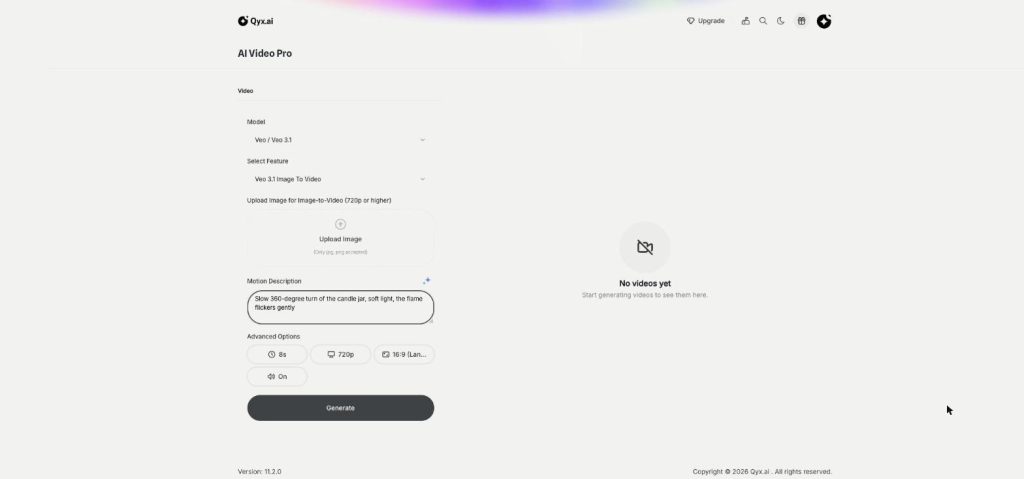
Image to Video
Turn a product photo into a video
Image to video AI in Qyx turns one product photo into a short video. Upload the photo, describe the motion and pick Veo, Kling, Seedance or another model.
-
Text to Video
Cinematic video from a single line
Text to video AI in Qyx turns one written prompt into a video scene. Describe the shot, pick Veo, Kling, Seedance or another model, and download the clip.
-
First and Last Frame
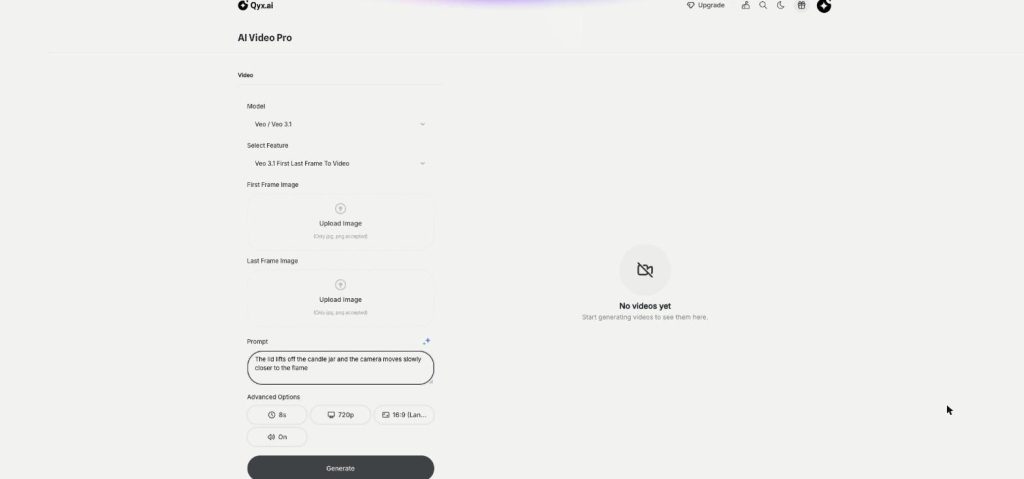
Frame to frame, fully controlled
First and last frame video in Qyx lets you set where a clip starts and where it ends. Upload two images, describe the move between them, and the model fills in the motion.
-
Video Background Removal
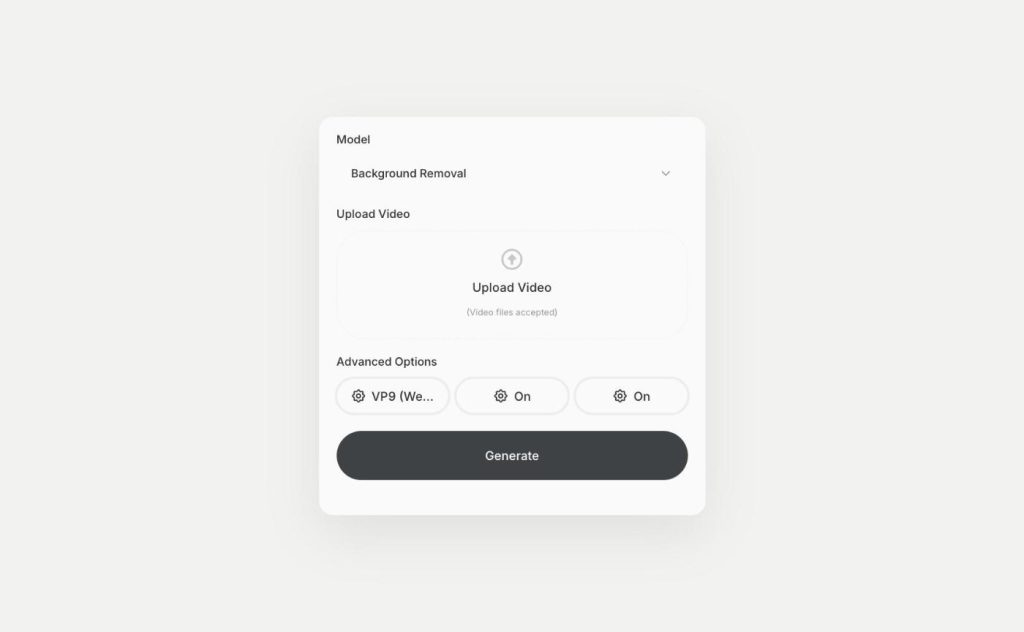
Remove the background from any video
Video background remover in Qyx cuts the person or product out of your clip. Upload a video and download it with a transparent background as WebM or H264.
How It Works
A simple three-step process, start to finish.
-
Choose a model and a mode
Pick Veo, Kling, Seedance or another model, then text, image or first and last frame.
-
Describe the video
Write the prompt, upload your image and choose the format and length.
-
Generate and download
Watch the result in AI Video Pro and download the clip for your ads or your store.
Why sellers use AI Video Pro
Video for products you never filmed.
Several video models without several subscriptions.
Background removal for clips that need a new backdrop.
Good to know before you start
AI Video Pro is the AI video generator in Qyx. It makes short videos from a text prompt, a product photo or a pair of frames. You pick the video model, describe what should happen and download the clip.
Models in the AI video generator
AI Video Pro gives you Veo 3.1, Kling v2.5, v2.6 and v3, Seedance 2.0 and 2.5, Grok Imagine from xAI, Gemini Omni Flash and Minimax in one interface. In the model list Qyx labels Veo as best for storytelling, Kling as best for motion control, Gemini Omni Flash as video with synchronized audio and Minimax as the fast, low-cost option. You choose the model per video, so you can test the same prompt on two models and keep the better clip.
Ways to start a video
Image to video animates a photo you upload, such as a product shot from your store. In text to video, the model builds the whole scene from your prompt. With first and last frame to video, you upload two images and the model generates the motion between them, which helps when the clip has to start and end on a specific product view. Veo 3.1 also offers reference to video, plus Fast and Lite versions for quicker drafts.
Settings you control
Before you generate, you set the duration and the resolution, and you choose an aspect ratio such as 16:9. With Veo you turn sound on or off. A negative prompt tells the model what to leave out, and a seed lets you repeat a result. Background Removal removes the background from a video clip.
Where the clips go
You can run the clips in Meta and TikTok ads, place them on product pages or post them on social media. To cut several clips together and add text or music, open them in AI Video Editor. To publish to Instagram, Facebook, X or LinkedIn from the same account, use AI Social Media Suite. If you start from a product page instead of a photo, URL to Video Ad builds a full ad with script, avatar and voice.
Write prompts an AI video generator can follow
Name the subject, the setting, the action, the light and the camera move in one or two sentences. A prompt like „a glass bottle of hot sauce on a wooden table, slow push-in, warm afternoon light“ gives the model more to work with than „sauce video“. Generate more than one version and keep the clip that shows the product as it looks in real life.
Questions, answered
AI Video Pro includes Veo 3.1, Kling, Seedance, Grok Imagine, Gemini Omni Flash and Minimax. You pick the model for each video.
Yes. Choose image to video, upload the product photo and describe the motion you want.
Clip length depends on the model. Veo 3.1 starts at 8 seconds, and you can join several clips in AI Video Editor.
Veo 3.1 and Gemini Omni Flash can generate video with audio. With Veo you turn sound on or off before you generate.
No. You write a prompt or upload a photo, and AI Video Pro generates the clip.
Make your first product video in AI Video Pro
From $29/month · 7-day money-back guarantee · Cancel anytime