AI Tool: AI Voice Isolator. How to Remove Background Noise From a Recording? Examples
To remove background noise from a recording, upload the audio file to the AI Voice Isolator in Qyx and get a file with the voice on its own. The AI Voice Isolator is a Qyx AI voice isolator that separates speech from background sound.
What is the AI Voice Isolator template?
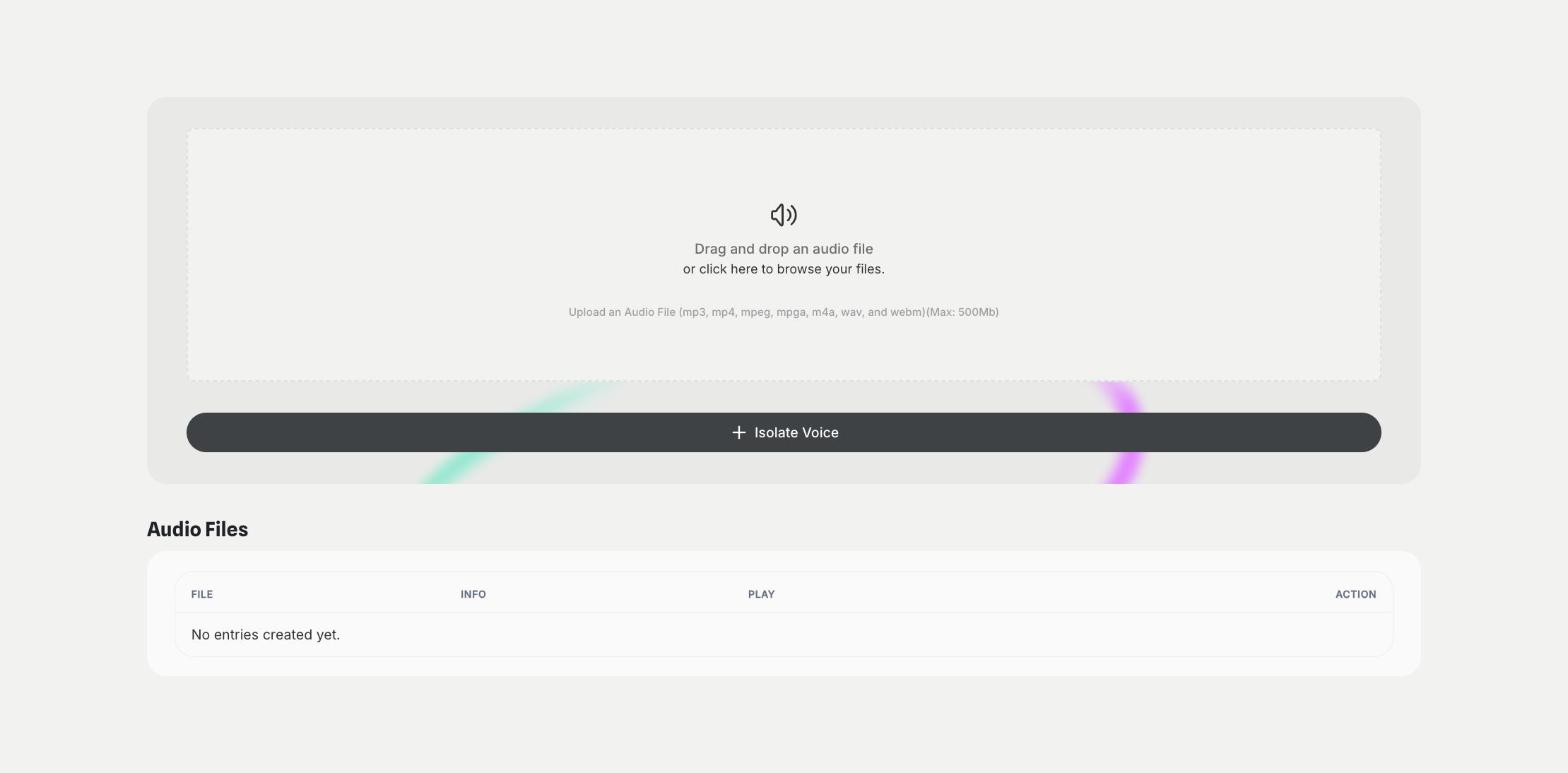
The AI Voice Isolator is a Qyx tool for interviews, podcasts, videos and voice notes recorded in noisy places. You drag the audio file into the upload area and click Isolate Voice, and Qyx separates the voice from music, street noise or room sound. The tool accepts mp3, mp4, mpeg, mpga, m4a, wav and webm files up to 500 MB. The cleaned files appear in the Audio Files list, where you play them. Listen to the result before you use it, because some sounds close to the voice can stay. Use recordings you own or have the right to edit. Clean the voice first when you plan to transcribe a recording, because a clean voice gives a more accurate transcript.
-
Voice on its own
Separate speech from music and noise.
-
Large files
Upload recordings up to 500 MB.
-
Files in one list
Play your cleaned files in Audio Files.
How does it work?
- Open the AI Voice Isolator template in Qyx.
- Fill in the upload area with your audio file (mp3, mp4, mpeg, mpga, m4a, wav or webm, up to 500 MB).
- Click Generate, pick the best result and edit it right in the editor.
Who is it for?
-
Podcasters
Clean episodes recorded outside a studio.
-
Video creators
Clean the voice in clips shot outdoors.
-
Journalists
Clean interviews recorded in busy places.
-
Teachers
Clean recorded lessons.
Practical example
What you enter
Audio file: a recording with speech and background noise, in one of the supported formats, up to 500 MB.
What you get
An audio file with the voice separated from the background. Listen to it, then use it in your edit or transcribe it.
Conclusion
The AI Voice Isolator separates voice from noise. Turn the clean recording into text with AI Speech to Text in Qyx.