AI Tool: Realtime Voice Chat. How to Talk to AI by Voice? Examples
To talk to AI by voice, click Start Voice Chat in Realtime Voice Chat in Qyx and speak. Realtime Voice Chat is a Qyx AI voice chat that answers you out loud during the conversation.
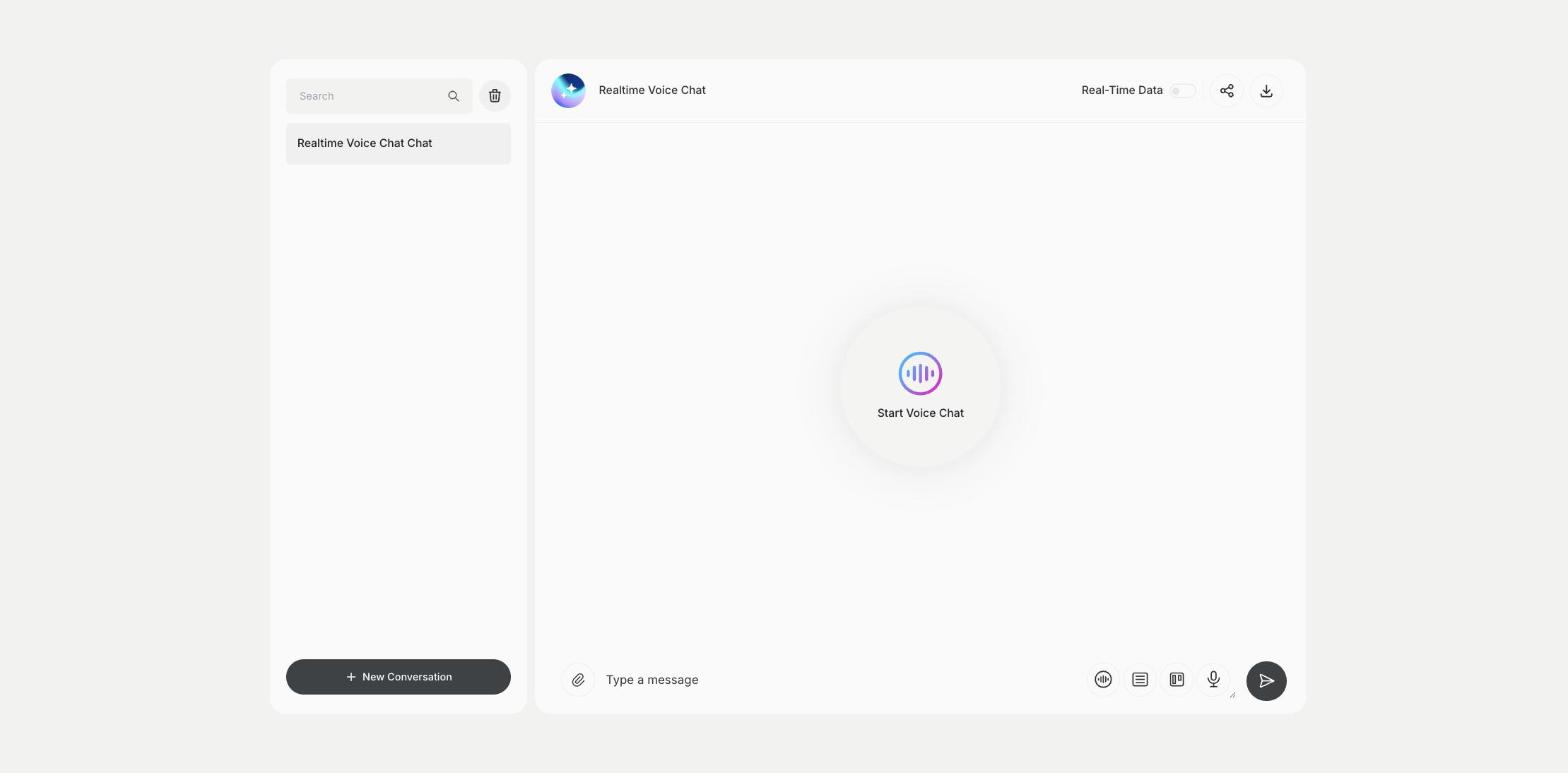
What is the Realtime Voice Chat template?
Realtime Voice Chat is a Qyx tool for conversations you want to have out loud, such as practicing a pitch, rehearsing a job interview, learning a language or thinking through an idea while you walk. You click Start Voice Chat, allow the microphone in your browser and talk, and Qyx answers by voice. You can also type a message in the box below. Turn on Real-Time Data when you need current information in the answers. Each conversation is saved in the list on the left. Use headphones in a quiet room for a smoother conversation. Tell the assistant at the start what role to play, such as an interviewer or a customer, so the practice feels closer to the real situation.
-
A conversation by voice
Speak and hear the answers.
-
Practice out loud
Rehearse pitches, interviews and language skills.
-
Voice or text
Switch to typing when you need to.
How does it work?
- Open the Realtime Voice Chat template in Qyx.
- Fill in the message box if you want to type, or click Start Voice Chat, allow the microphone and start talking.
- Click Generate, pick the best result and edit it right in the editor.
Who is it for?
-
Language learners
Practice speaking in another language.
-
Job seekers
Rehearse answers before an interview.
-
Sales people
Practice a pitch and handle objections.
-
Busy founders
Think through ideas by talking.
Practical example
What you enter
Your first sentence: the situation you want to practice or the topic you want to talk about, said out loud.
What you get
A spoken conversation with the assistant. Continue it, ask follow-up questions and open the saved chat later to review it.
Conclusion
Realtime Voice Chat lets you talk to AI by voice. To turn a script into a recorded voice, use AI Voiceover in Qyx.