AI Tool: AI Video. How to Create a Video From a Text Description? Examples
To create a video from a text description, describe the scene in AI Video in Qyx and get a video in your results. AI Video is a Qyx AI video generator that turns a written description into a video.
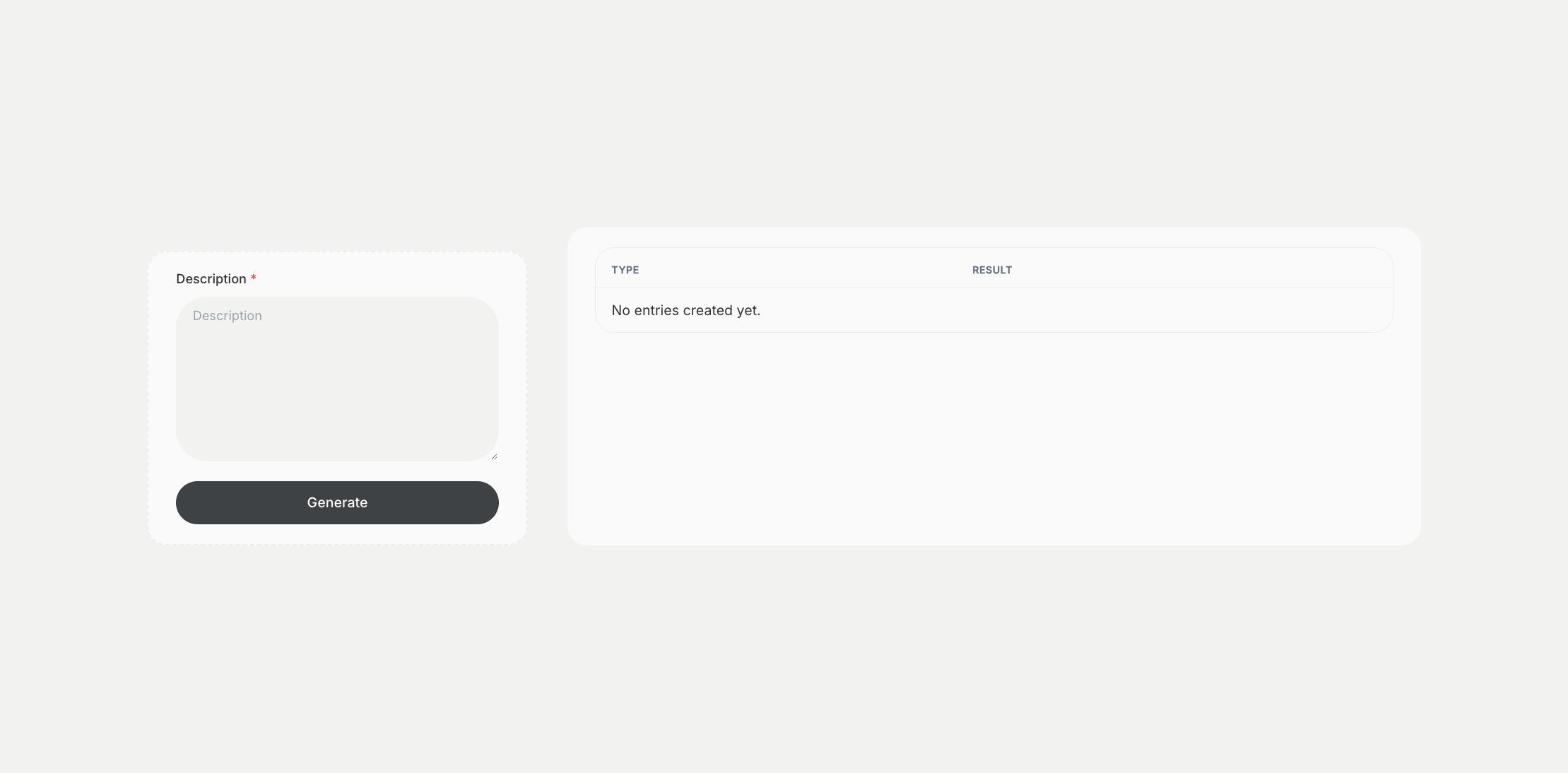
What is the AI Video template?
AI Video is a Qyx tool for short clips for social media, ads, presentations and websites. You describe the scene in Description, click Generate, and Qyx creates the video and adds it to the results table. Describe the subject, the setting, the movement and the camera angle, because the video follows what you write. Keep one scene per description, and create more clips if you need more scenes. Watch the result and change the description when something does not match. Describe the light and the mood too, such as a sunny morning or a dark studio. Check the license terms before you use a generated video in paid ads.
-
Video from text
Describe a scene and get a video.
-
Results in one table
Find your videos in the results list.
-
Ideas you can test
Try several descriptions for the same idea.
How does it work?
- Open the AI Video template in Qyx.
- Fill in the scene you want to see in Description.
- Click Generate, pick the best result and edit it right in the editor.
Who is it for?
-
Social media managers
Create clips for posts and stories.
-
Marketers
Test video ad ideas.
-
Online stores
Create short scenes around your products.
-
Creators
Add generated scenes to your videos.
Practical example
What you enter
Description: the subject, the setting, the movement and the camera angle of one scene.
What you get
A video of the scene you described. Watch it, change the description if something is off and use the clip in your edit.
Conclusion
AI Video creates videos from your descriptions. Plan what to show first with the Video Idea template in Qyx.