Creative Suite · Canvas
Design ads and creatives on one canvas
Canvas in Qyx Creative Suite is an online ad maker for social posts, banners and ads. Pick a template or a preset size, add text, images and symbols, arrange layers and export.
- 18 preset sizes for social and Google Ads
- Adaptive Resize to new formats
- Text, images, symbols and layers
- Import, export, download and save
Open a template or a preset size.
- No design software to install
- Works in your browser
- Cancel anytime
One ad, ten formats
A single campaign needs a story, a feed post, a banner and a thumbnail, and each size starts from zero.
I rebuild the same ad for every format by hand.
Pro design software is too much for a quick banner.
I never remember the right pixel size for each platform.
One canvas for every format:
- Template library
- 18 preset sizes
- Custom width and height
- Adaptive Resize
- Text and image tools
- Layers panel
How It Works
A simple three-step process, start to finish.
-
Start the design
Pick a template from the library or a preset size.
-
Build the creative
Add text, images and symbols, then arrange them on layers.
-
Resize and export
Switch to another size with Adaptive Resize and download the file.
Why marketers use an online ad maker
Every format of a campaign from one design.
Ads made in minutes, without a designer.
Projects saved for the next campaign.
Good to know before you start
Canvas is the online ad maker inside Creative Suite. It is an editor where you design social posts and banners yourself, with templates and preset sizes to start from. Everything stays editable, so you can change one word or one image and export again.
Preset sizes in the online ad maker
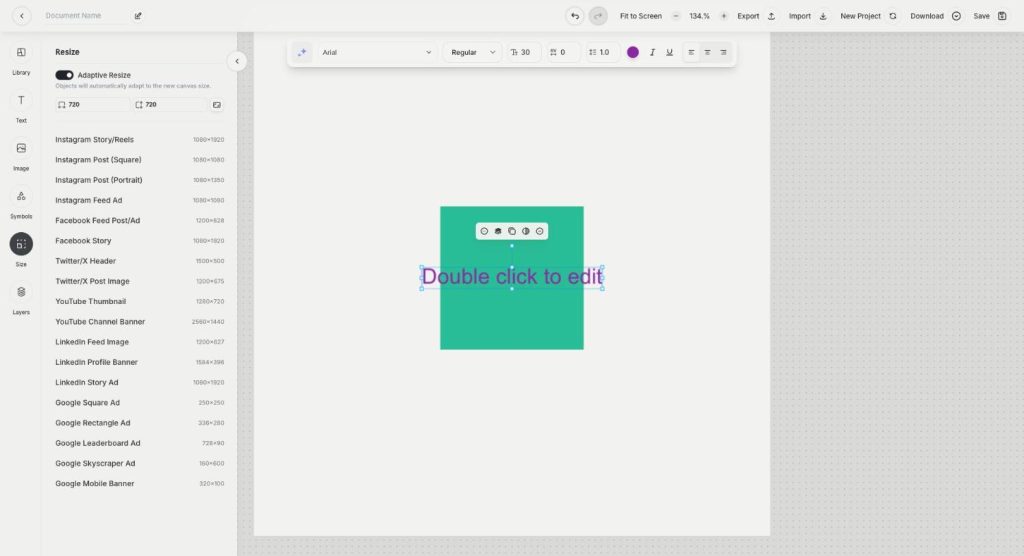
The Size panel lists 18 presets. Social formats include Instagram Story and Reels at 1080×1920, Instagram Post in square and portrait, Facebook Feed Post, X Header, YouTube Thumbnail and LinkedIn Feed Image. For display ads there are five Google sizes, from Square and Leaderboard to Skyscraper or Mobile Banner. You can also type your own width and height.
Adaptive Resize
With Adaptive Resize turned on, the objects on the canvas adapt when you change the size. Design the Instagram post first, then switch to Story or Facebook Feed and fix the details, instead of rebuilding the layout from scratch.
Tools on the canvas
The side panel has Library for templates, Text for headings and body copy, Image for photos, Symbols for icons and shapes, Size for formats and Layers for the order of elements. The text toolbar sets the font, weight, size, spacing, line height, colour and alignment. At the top you can import and export projects, download the design, start a new project and save.
Typical jobs for the canvas
A shop owner can turn one product photo into a sale banner for the homepage, a square post and a vertical story in a single session. An agency can keep a template per client and swap only the headline every week. A creator can make YouTube thumbnails with the same font and colours, so the channel looks consistent at a glance.
Tips for ads from an online ad maker
Keep one message and one call to action per ad. Make the headline readable on a phone, which usually means fewer words in a bigger font. Use your own product photos from AI Photoshoot where you can. If you would rather describe the design than build it, start with AI Designer. To fix part of an image on the canvas, use Annotation Mode.
Questions, answered
Canvas is the Qyx online ad maker where you design social posts and banners from templates and preset sizes.
There are 18 presets for the main social networks and Google display ads, plus any custom size you type in.
Yes. Turn on Adaptive Resize, and the objects adapt to the new canvas size.
Yes. Save the project, or export it and import it again later.
No. Canvas runs in your browser inside Qyx.
More Creative Suite features
-
AI Designer
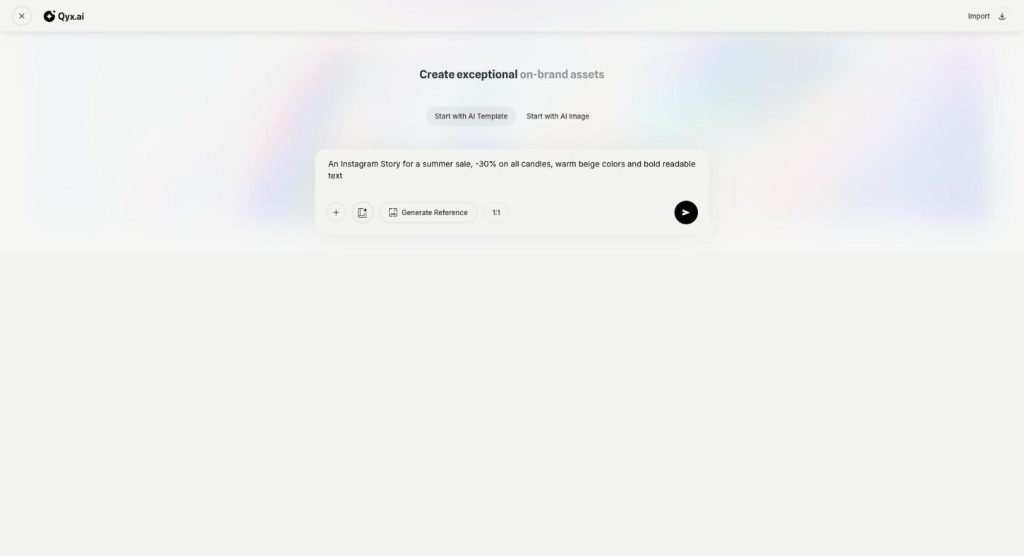
Describe a design and get it editable
AI Designer in Qyx is an AI graphic designer for marketing creatives. Describe the post or ad you need, and get a finished design with layout, text and images that you can still edit.
-
Annotation Mode
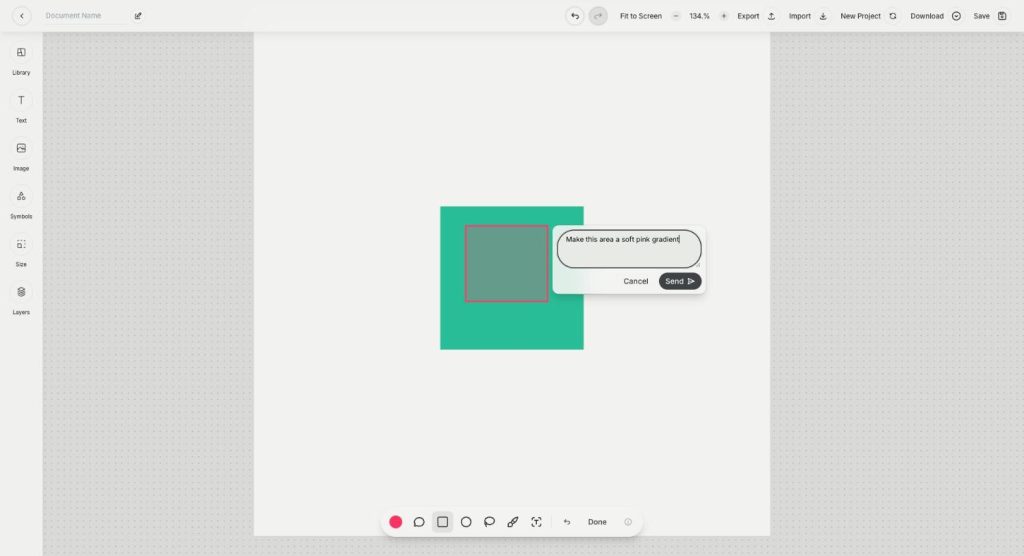
Point at an image, tell AI what to fix
Annotation Mode is the AI inpainting tool in Qyx Creative Suite. Mark an area of the image, write what should change there, and the AI edits only that region.
Design your next ad on the canvas
From $29/month · 7-day money-back guarantee · Cancel anytime