AI Video Pro · First and Last Frame
Frame to frame, fully controlled
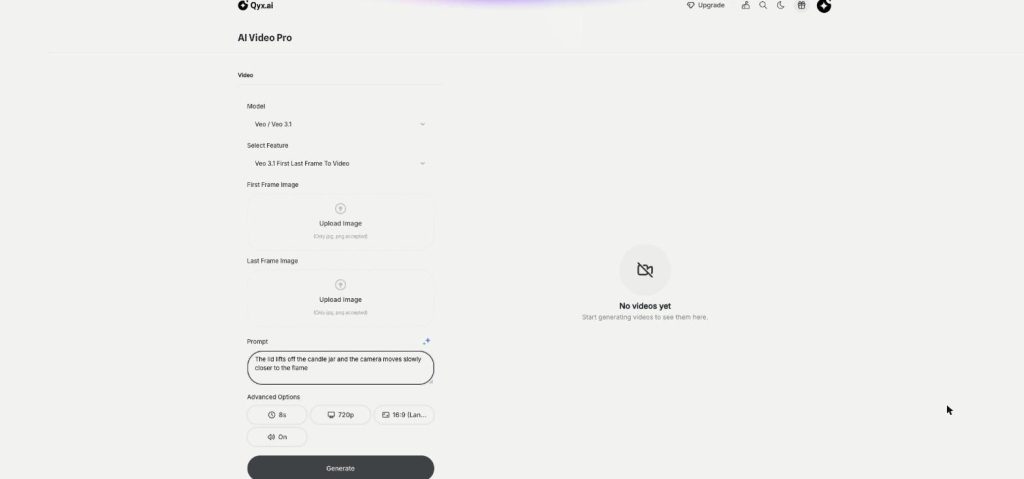
First and last frame video in Qyx lets you set where a clip starts and where it ends. Upload two images, describe the move between them, and the model fills in the motion.
- First and last frame on Veo 3.1
- Optional end frame on Kling v3 and Seedance
- 8 seconds on Veo, up to 15 on Kling v3
- Vertical or horizontal
Upload the first and the last frame.
- No keyframe animation skills
- Works from two JPG or PNG images
- Cancel anytime
AI video goes where it wants
A prompt alone gives you a nice clip, and then it ends on a frame that doesn't show your product.
The clip starts well and ends on the wrong angle.
I can't make two clips connect smoothly.
My before and after shots need the move in between.
Two frames, one controlled clip:
- First frame image
- Last frame image
- Motion between them
- Veo 3.1, Kling v3, Seedance
- Vertical or horizontal
- Sound on Veo
How It Works
A simple three-step process, start to finish.
-
Upload two frames
Add the first frame and the last frame as JPG or PNG.
-
Describe the move
Write how the scene and the camera get from one frame to the other.
-
Generate the clip
Pick the model and format, then download the video.
Why creators use first and last frame video
Clips that end on your product, every time.
Smooth transitions between two shots.
Before and after moments in one move.
Good to know before you start
First and last frame video is a mode in AI Video Pro where you decide how a clip begins and how it ends. You upload two images, and the model generates the motion that leads from the first to the last. It is the most controlled way to make an AI clip.
Models with first and last frame
Veo 3.1 has a dedicated First Last Frame To Video mode, plus faster Fast and Lite variants. It makes 8-second clips in 720p or 1080p, as 16:9 or 9:16, with sound on or off. Kling v3 Image to Video takes a start frame and an optional end frame, with lengths from 3 to 15 seconds and a 1:1 format. Seedance 2.0 and 2.5 also accept an optional end frame.
When to use it
Use it when the last shot matters: a product turning to face the camera, a closed box that ends open, a room before and after styling, a logo reveal at the end. It also helps when you join several clips, because the last frame of one clip can be the first frame of the next.
Ideas for product clips
A skincare brand can start on a closed jar and end on the open jar with the cream visible. For a bakery, the clip goes from raw dough to a golden loaf. Furniture shops move from an empty corner to the same corner with a new sofa, and a watch store can start on the strap and finish on the dial facing the camera. Every one of these needs two matching images and one short move.
Preparing the two frames
Both images should have the same format, the same light and the same product at the same size, so the model only has to invent the motion. Change one or two things between the frames, such as the angle or the lid, not everything at once. Create matching frames with AI Image Editor or AI Photoshoot.
Writing the prompt for first and last frame video
Describe the path, not the frames. „Slow 180-degree orbit around the bottle, steady speed“ tells the model how to travel. If the result jumps or warps, make the two frames closer to each other or shorten the move. For a free camera move from one photo, use image to video.
Questions, answered
It is an AI Video Pro mode where you upload the first and the last frame, and the model creates the motion between them.
Veo 3.1 has First Last Frame To Video. Kling v3 and Seedance accept an optional end frame in image to video.
Veo 3.1 makes 8-second clips. Kling v3 lets you choose from 3 to 15 seconds.
JPG or PNG images. Use the same format and light in both frames for smooth motion.
Yes. Use the last frame of one clip as the first frame of the next.
More AI Video Pro features
-
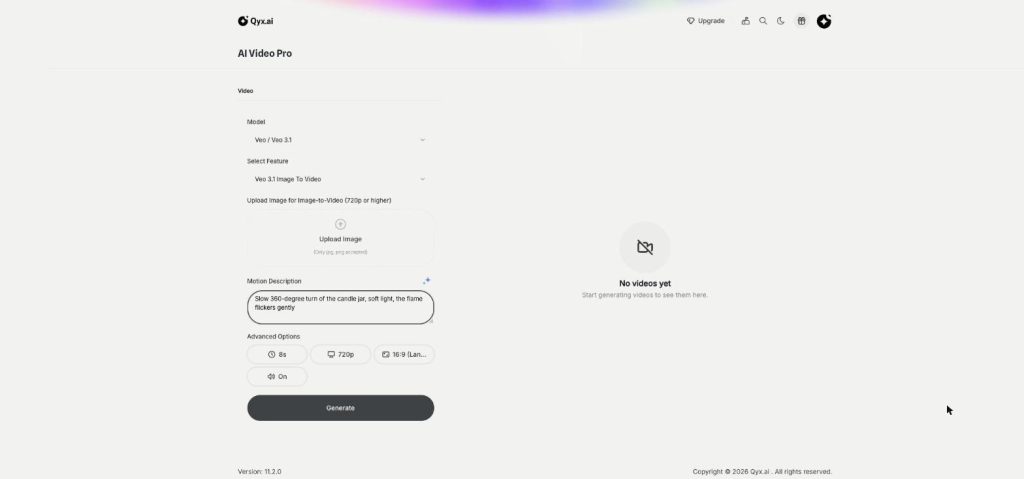
Image to Video
Turn a product photo into a video
Image to video AI in Qyx turns one product photo into a short video. Upload the photo, describe the motion and pick Veo, Kling, Seedance or another model.
-
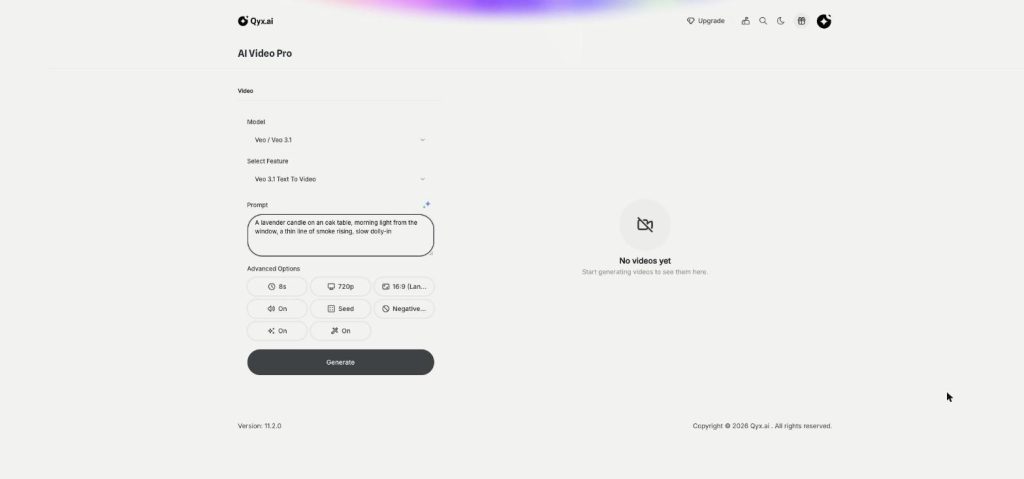
Text to Video
Cinematic video from a single line
Text to video AI in Qyx turns one written prompt into a video scene. Describe the shot, pick Veo, Kling, Seedance or another model, and download the clip.
-
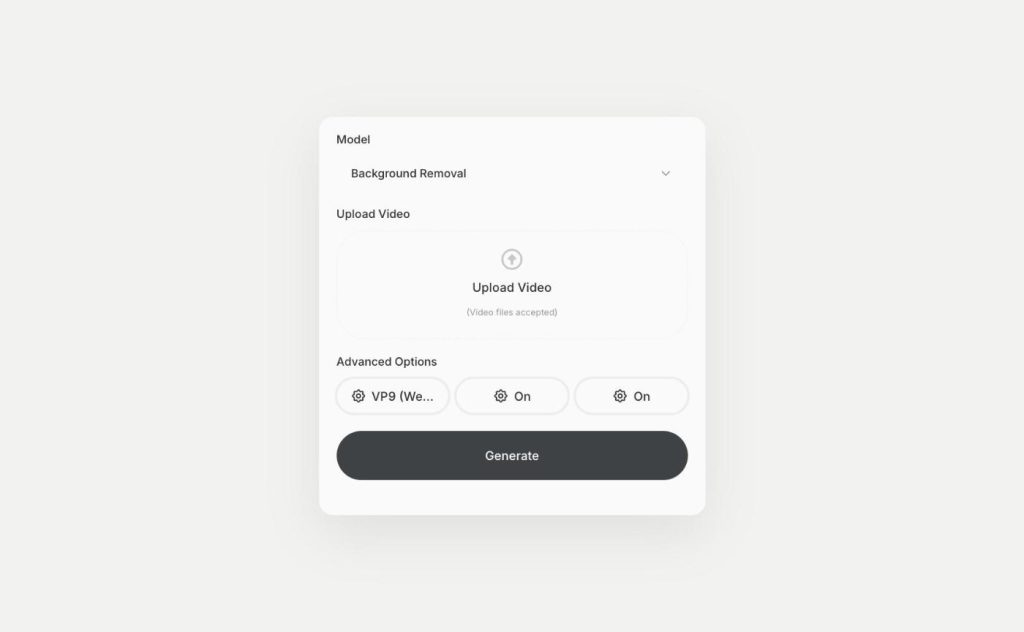
Video Background Removal
Remove the background from any video
Video background remover in Qyx cuts the person or product out of your clip. Upload a video and download it with a transparent background as WebM or H264.
Set the first and last frame of your next clip
From $29/month · 7-day money-back guarantee · Cancel anytime